Create a Table
To create a blank table:
-
From the ShareFile navigation, go to Projects.
-
Create a new project or select an existing project to open it.
-
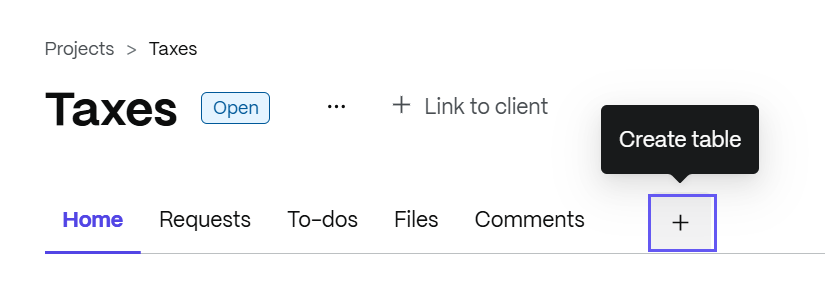
Select + to create a table.
-
Select blank table. The 'Create table' window displays.
-
From the 'Create table' window, type in a Title to name the table and select Add.
NOTE:
Soon you will have the ability to change the default view for tabs, but for now they'll all default to Table view.
-
The Table is added to your Project as a new tab.
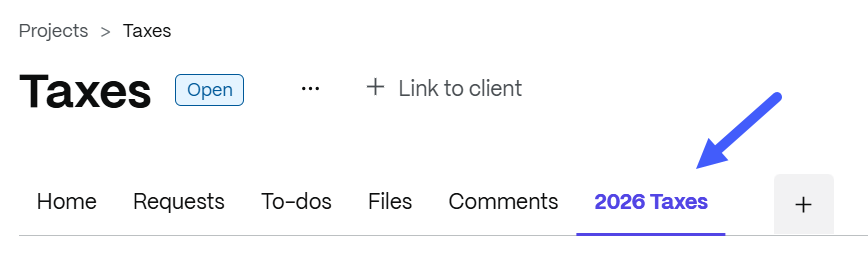
You can start adding rows and fields to build the table.
-
Add rows - Select Create row to add rows to the table, then enter a Title for each row.
-
Add fields - Select + Add next to the table Title to open the Add field popup for the row.
- Type in a Title for the field.
- Select a field Type from the following options:
- Short text (single-line) - for short descriptions or questions.
- Long text (multi-line) - for longer explanations or descriptions allowing the use of Rich Text Formatting including fonts, bold, italics, bullets, and other popular formatting options.
- Person
- Date
- Category
- Files
- Number
- Currency
- Link
- Duration
- Select Create field. Repeat this proces until you complete your table.