This content has been machine translated dynamically.
Dieser Inhalt ist eine maschinelle Übersetzung, die dynamisch erstellt wurde. (Haftungsausschluss)
Cet article a été traduit automatiquement de manière dynamique. (Clause de non responsabilité)
Este artículo lo ha traducido una máquina de forma dinámica. (Aviso legal)
此内容已经过机器动态翻译。 放弃
このコンテンツは動的に機械翻訳されています。免責事項
이 콘텐츠는 동적으로 기계 번역되었습니다. 책임 부인
Este texto foi traduzido automaticamente. (Aviso legal)
Questo contenuto è stato tradotto dinamicamente con traduzione automatica.(Esclusione di responsabilità))
This article has been machine translated.
Dieser Artikel wurde maschinell übersetzt. (Haftungsausschluss)
Ce article a été traduit automatiquement. (Clause de non responsabilité)
Este artículo ha sido traducido automáticamente. (Aviso legal)
この記事は機械翻訳されています.免責事項
이 기사는 기계 번역되었습니다.책임 부인
Este artigo foi traduzido automaticamente.(Aviso legal)
这篇文章已经过机器翻译.放弃
Questo articolo è stato tradotto automaticamente.(Esclusione di responsabilità))
Translation failed!
Complete a Document That Was Sent to You
The objective of this article is to reduce errors and omission when signing with these simple, step-by-step instructions:
-
Step 1 Read the yellow RightStep Bar at the bottom of the document to find out how many items you need to fill out.
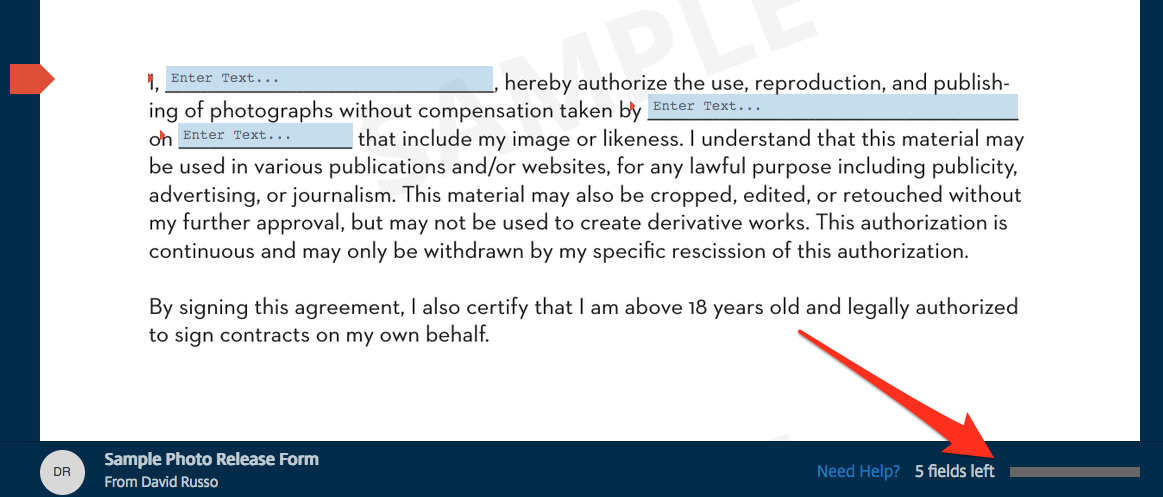
-
Step 2 Click on the red NaviGuide flag on the left side of the document to be taken to the area of the document where the next required task is located.
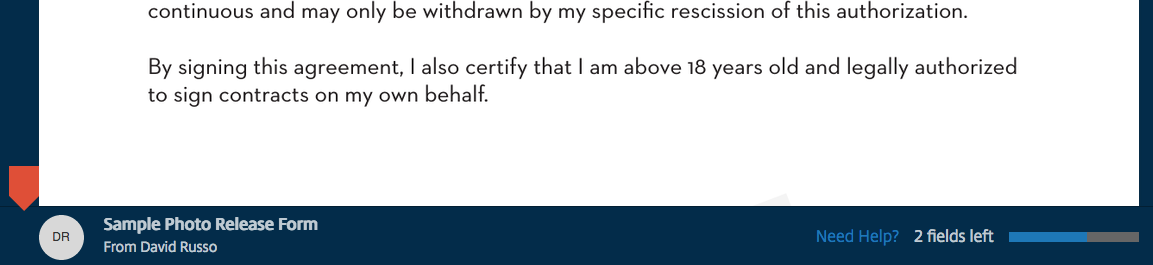
-
Step 3 Click your mouse in a text field to begin entering information. Then type the required information.
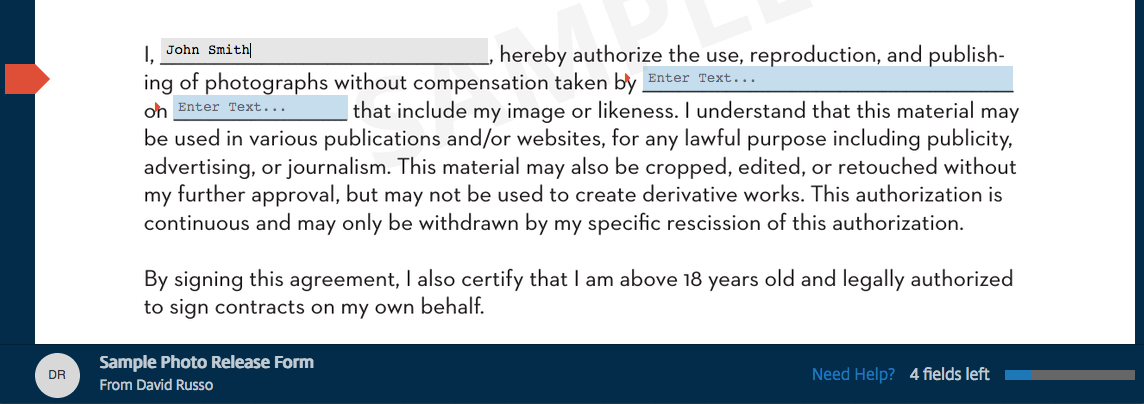
If there are checkboxes, click your mouse button inside of a checkbox to select and check it.
To set the date field, click your mouse in the box. A calendar will appear that is preset to today’s date. To confirm, select the desired date from the calendar.
-
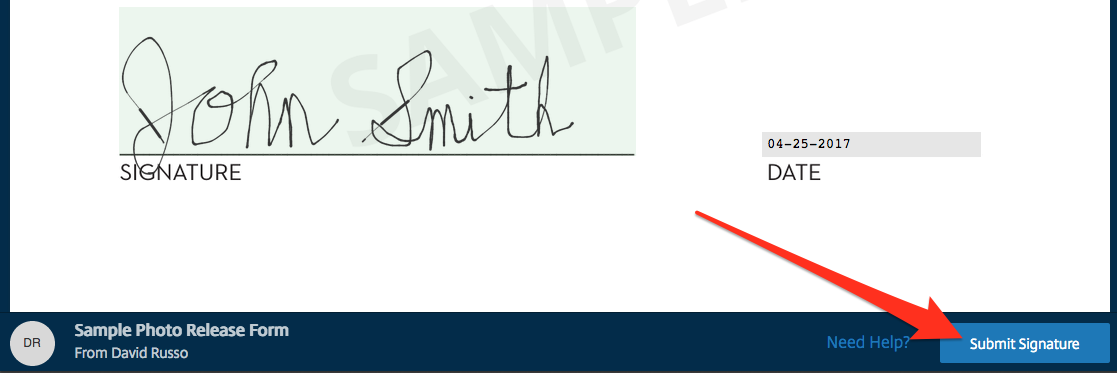
Step 4 Sign your name in the signature box.
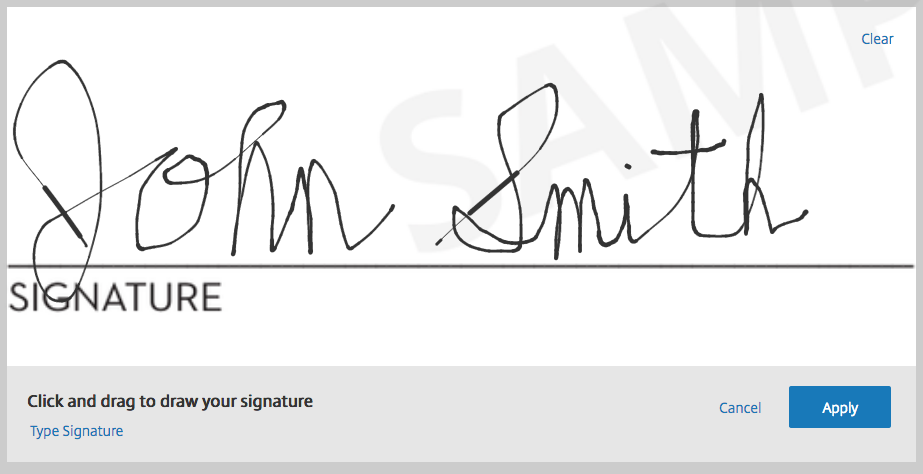
f you are using a mouse: Click and drag in the box with the left click button to draw your signature with the mouse.
If you are using a trackpad: Click in the box, hold your thumb down on the trackpad, and draw your signature with your index finger.
If you are using a mobile device: Draw your name with your finger inside the signature box.
- Step 5 When all of the required fields are complete on the document, the Submit Signature Button will appear in green. Click this button to complete the signing process.
In this article
This Preview product documentation is Citrix Confidential.
You agree to hold this documentation confidential pursuant to the terms of your Citrix Beta/Tech Preview Agreement.
The development, release and timing of any features or functionality described in the Preview documentation remains at our sole discretion and are subject to change without notice or consultation.
The documentation is for informational purposes only and is not a commitment, promise or legal obligation to deliver any material, code or functionality and should not be relied upon in making Citrix product purchase decisions.
If you do not agree, select I DO NOT AGREE to exit.