This content has been machine translated dynamically.
Dieser Inhalt ist eine maschinelle Übersetzung, die dynamisch erstellt wurde. (Haftungsausschluss)
Cet article a été traduit automatiquement de manière dynamique. (Clause de non responsabilité)
Este artículo lo ha traducido una máquina de forma dinámica. (Aviso legal)
此内容已经过机器动态翻译。 放弃
このコンテンツは動的に機械翻訳されています。免責事項
이 콘텐츠는 동적으로 기계 번역되었습니다. 책임 부인
Este texto foi traduzido automaticamente. (Aviso legal)
Questo contenuto è stato tradotto dinamicamente con traduzione automatica.(Esclusione di responsabilità))
This article has been machine translated.
Dieser Artikel wurde maschinell übersetzt. (Haftungsausschluss)
Ce article a été traduit automatiquement. (Clause de non responsabilité)
Este artículo ha sido traducido automáticamente. (Aviso legal)
この記事は機械翻訳されています.免責事項
이 기사는 기계 번역되었습니다.책임 부인
Este artigo foi traduzido automaticamente.(Aviso legal)
这篇文章已经过机器翻译.放弃
Questo articolo è stato tradotto automaticamente.(Esclusione di responsabilità))
Translation failed!
Local Data Storage and Management in ShareFile for Mac
Overview
This guide provides technical information for ShareFile for Mac related to offline files and cache management, the Recovery folder, handling a corrupted local database and repeated full disk access permission request. Use the sections below to diagnose issues and apply safe remediation steps.
-
Removing Local Copies of Files (Keeping Them Online-Only)
- Open the ShareFile folder in Finder.
- Select the file in the ShareFile folder in Finder whose local copy you want to remove.
- Right click and select Remove Download.
Notes:
-
Unlike the legacy kext version, there is no option to configure a maximum cache size. Files marked for offline availability remain on the system unless the user changes them to online-only.
-
Removing a local copy does not delete the file from the cloud.
-
You can re-download the file anytime by double clicking it from the ShareFile folder.
-
Alternatively, you can re-download the file by right-clicking it and selecting Download Now.
-
Recovery Folder
Whenever an issue occurs while uploading the local data to the server, and the upload is unsuccessful, ShareFile for Mac moves those files into the recovery folder located at
~Library/Application Support/ShareFileRecovery. This folder can be accessed via Help > Open Recovery Folder. -
Repeated permission pop-up after restart
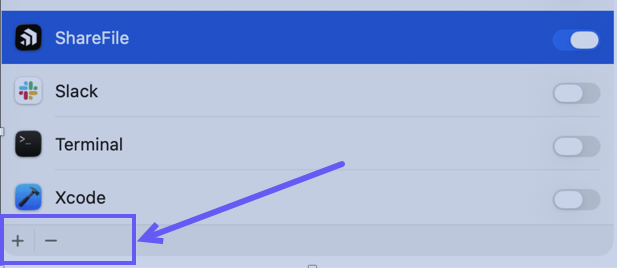
Users may see a recurring pop-up stating ShareFile would like to access data from other app every time the machine restarts. Even if the application already has permissions enabled under System Settings > Privacy & Security and is listed under Files and Folders, the system may continue prompting the user.
To resolve the issue, remove the application from Full Disk Access using the “–” button, then add it again using the ”+” button. This refreshes the permissions and stops the repeated pop-up.
-
ShareFile local storage
The files in Finder are the actual files; there is no longer a corresponding cache folder for files that appear within the ShareFile drive.
The local storage location used by ShareFile for Mac is
~/Library/CloudStorage< ShareFile>. This directory corresponds to the ShareFile drive shown in the Finder sidebar. -
App reset, Logout, Uninstallation
During an app reset, or when the user selects Remove all offline data from this device during logout or uninstallation, all data downloaded to local storage will be completely deleted. Any unsynced files will be backed up in a folder located at
~/Library/CloudStorage/< ShareFile-ShareFile(currentDate)>. This folder will open automatically after performing these operations. -
Corrupted local database - Reset Options
If the local database becomes corrupted, users can clear it and re-download content from the cloud using one of the following options:
-
Right click > Reset Folder - Use this when the issue is limited to a specific folder. It serves as an initial troubleshooting step before performing a full app reset.
-
Preferences > Reset App Settings - Use this to completely wipe the local database and re-download all content from the cloud.
Before performing the app reset, users can report the issue as documented in File Provider for Mac
-
Share
Share
In this article
This Preview product documentation is Citrix Confidential.
You agree to hold this documentation confidential pursuant to the terms of your Citrix Beta/Tech Preview Agreement.
The development, release and timing of any features or functionality described in the Preview documentation remains at our sole discretion and are subject to change without notice or consultation.
The documentation is for informational purposes only and is not a commitment, promise or legal obligation to deliver any material, code or functionality and should not be relied upon in making Citrix product purchase decisions.
If you do not agree, select I DO NOT AGREE to exit.