This content has been machine translated dynamically.
Dieser Inhalt ist eine maschinelle Übersetzung, die dynamisch erstellt wurde. (Haftungsausschluss)
Cet article a été traduit automatiquement de manière dynamique. (Clause de non responsabilité)
Este artículo lo ha traducido una máquina de forma dinámica. (Aviso legal)
此内容已经过机器动态翻译。 放弃
このコンテンツは動的に機械翻訳されています。免責事項
이 콘텐츠는 동적으로 기계 번역되었습니다. 책임 부인
Este texto foi traduzido automaticamente. (Aviso legal)
Questo contenuto è stato tradotto dinamicamente con traduzione automatica.(Esclusione di responsabilità))
This article has been machine translated.
Dieser Artikel wurde maschinell übersetzt. (Haftungsausschluss)
Ce article a été traduit automatiquement. (Clause de non responsabilité)
Este artículo ha sido traducido automáticamente. (Aviso legal)
この記事は機械翻訳されています.免責事項
이 기사는 기계 번역되었습니다.책임 부인
Este artigo foi traduzido automaticamente.(Aviso legal)
这篇文章已经过机器翻译.放弃
Questo articolo è stato tradotto automaticamente.(Esclusione di responsabilità))
Translation failed!
Hubdoc integration for ShareFile
Hubdoc is a document management tool (owned by Xero) that collects financial documents such as receipts, bills, and statements. When connected to ShareFile, Hubdoc automatically sends and stores those documents in ShareFile for backup and organization.
Once connected, documents can be published manually or automatically to a defined location in ShareFile. Hubdoc tracks which documents have already been published to prevent duplicate uploads.
Configuration is initiated entirely in Hubdoc. No setup is required in ShareFile beyond having an active account.
Prerequisites
Before connecting the integration, make sure you have the following:
- An active ShareFile account
- An active Hubdoc account with access to organization settings
- Permission to configure integrations in Hubdoc (Settings > Integrations)
Enable the integration
-
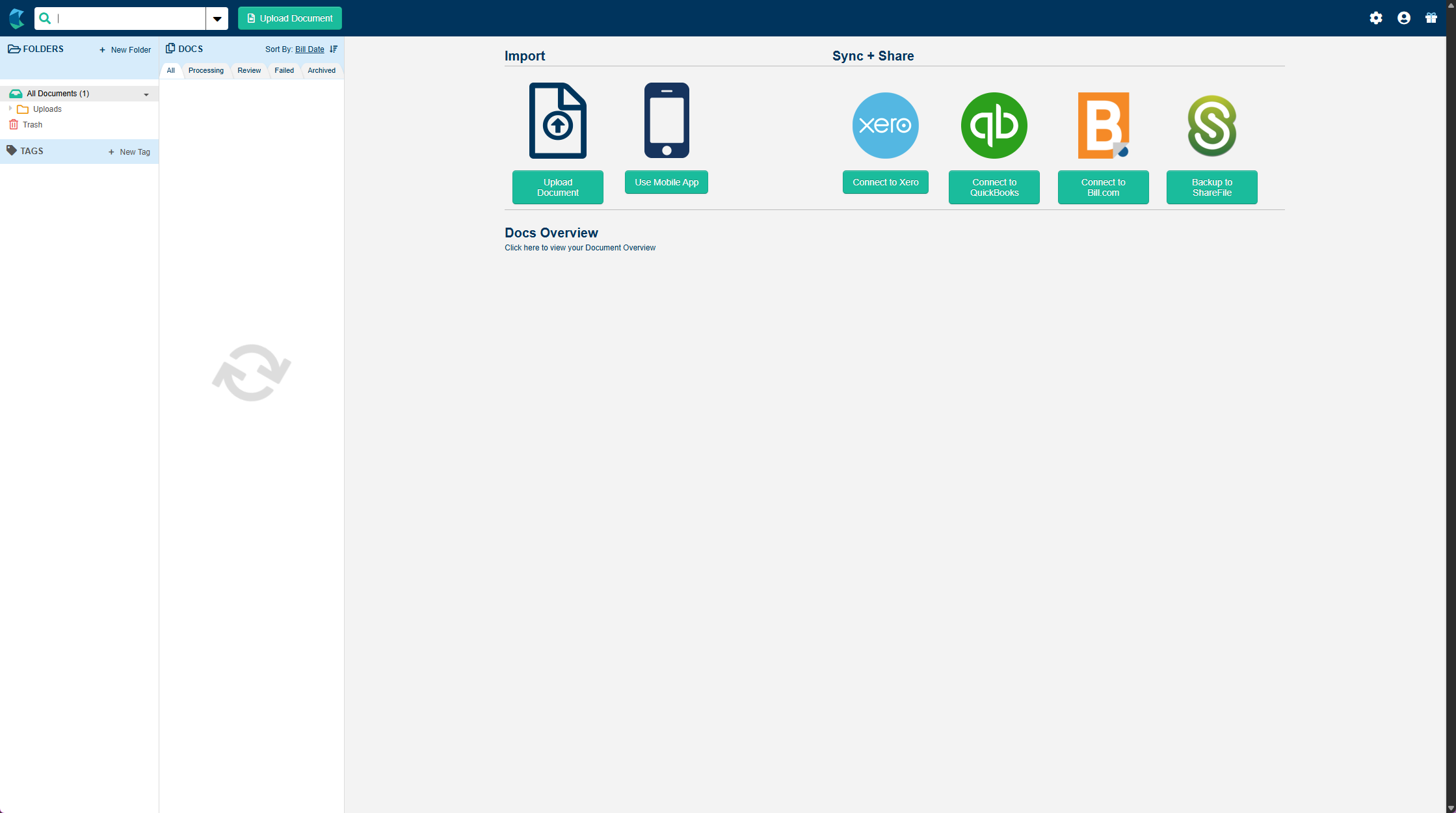
From the Hubdoc dashboard, locate the Sync + Share section and click Backup to ShareFile.
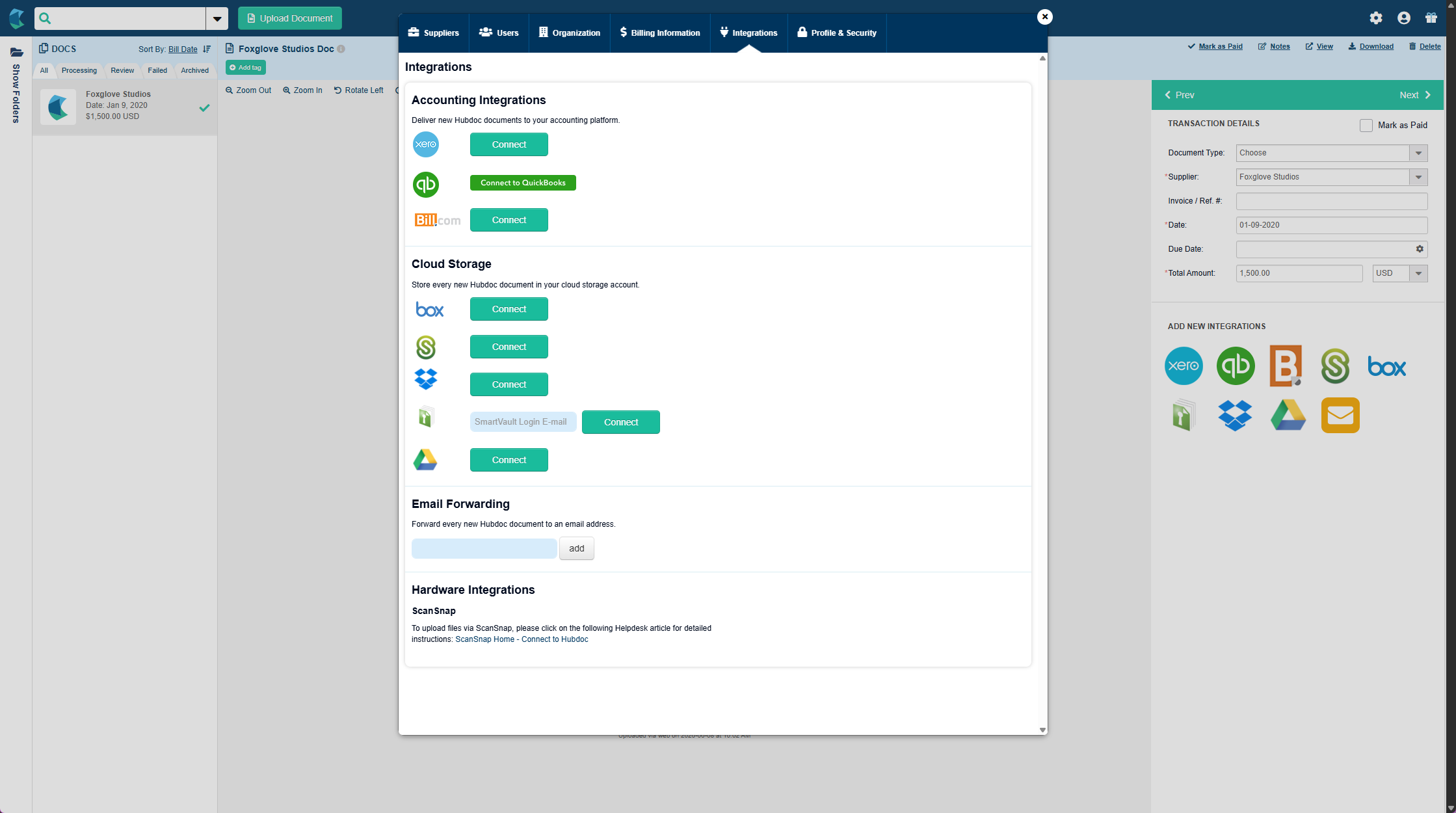
Alternatively, go to Settings > Integrations > Cloud Storage and click Connect next to ShareFile.
-
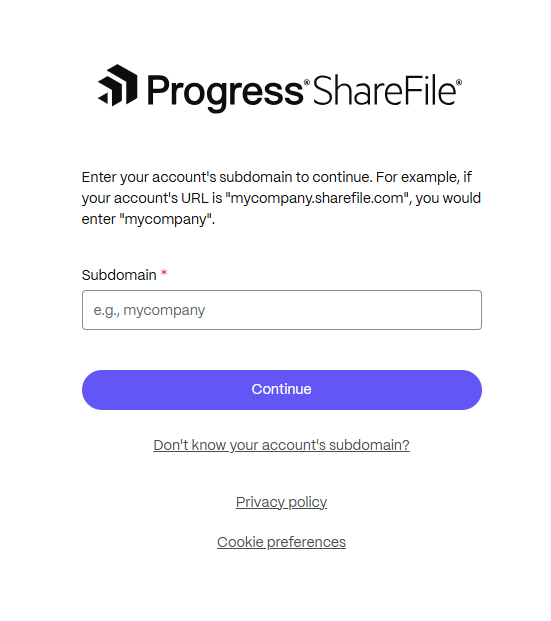
Enter your ShareFile account subdomain and click Continue.
-
Review the access request and click Continue to authorize Hubdoc to access your ShareFile account.

Configure the integration
After connecting, the ShareFile row in Hubdoc Integrations settings shows a Disconnect button and configuration options.
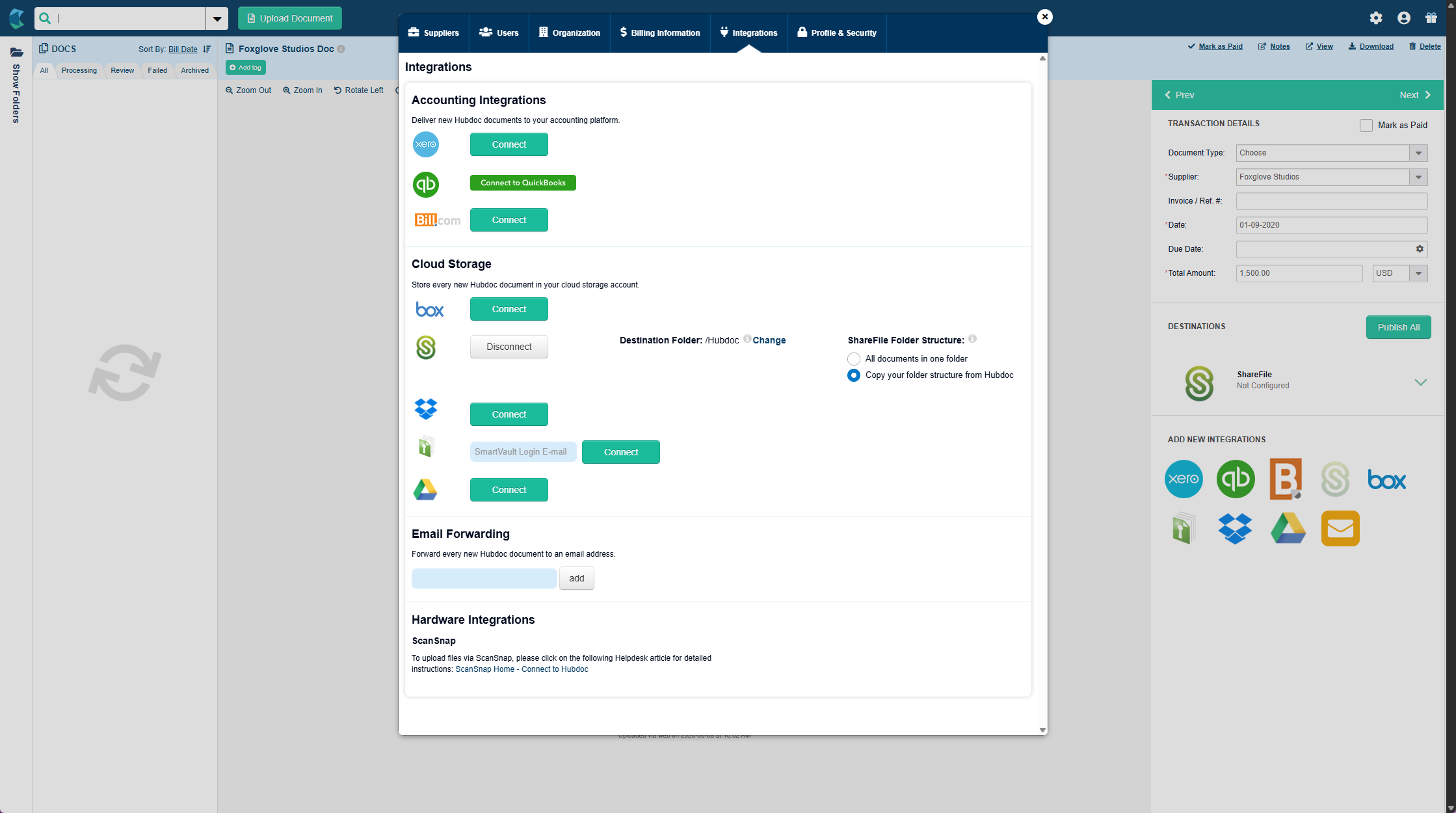
Configure the following settings:
- Destination folder — The ShareFile folder where documents are stored. To change it, click Change and paste the folder ID from the ShareFile folder URL.
-
ShareFile folder structure — Choose how documents are organized in ShareFile:
- All documents in one folder — All synced documents are placed in the destination folder.
- Copy your folder structure from Hubdoc — The Hubdoc folder hierarchy is replicated in ShareFile.
Publish documents to ShareFile
Once connected, you can publish documents from Hubdoc to ShareFile manually or automatically.
-
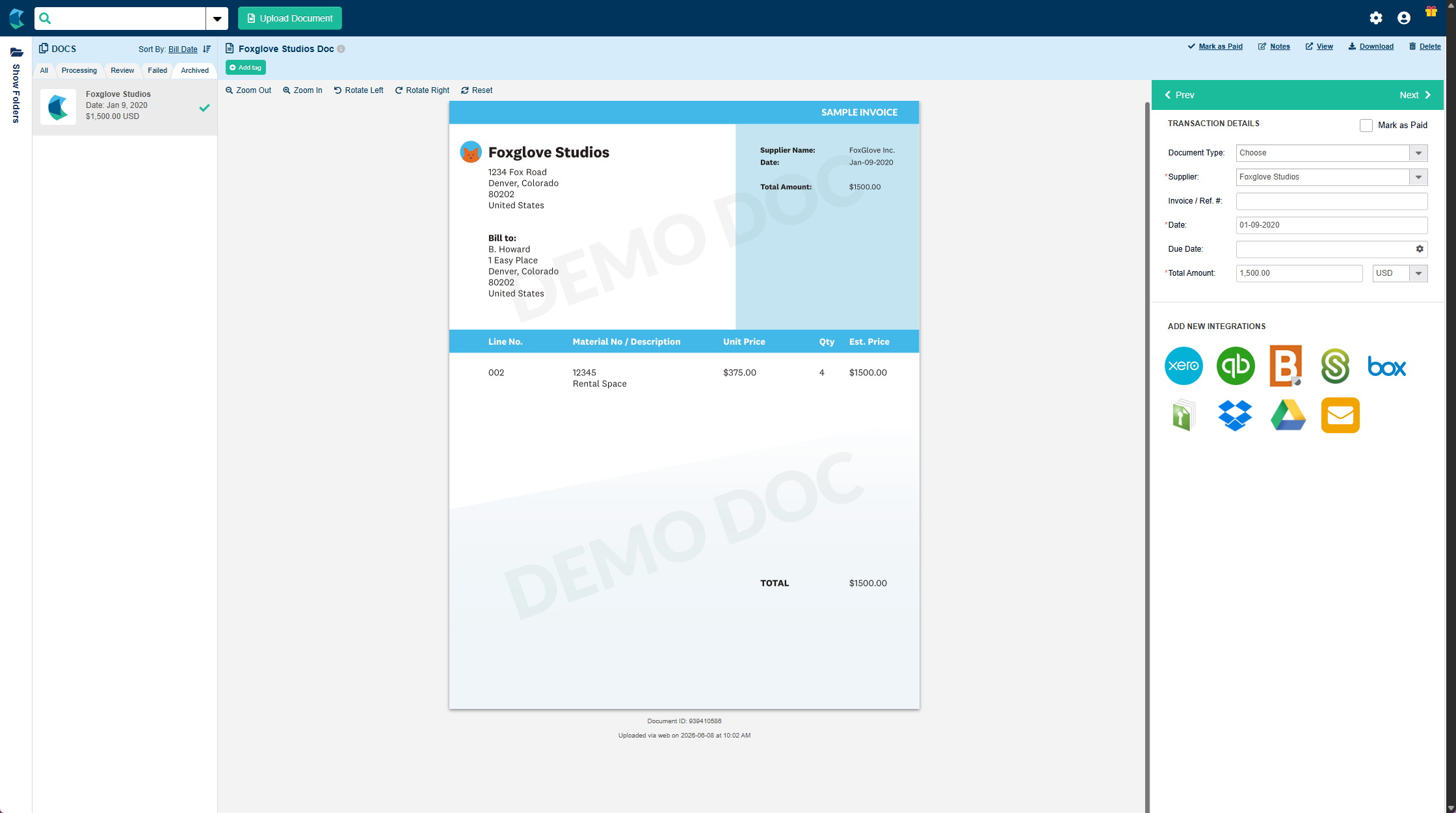
Open a document in Hubdoc. The Destinations panel on the right shows ShareFile as a publishing option.
-
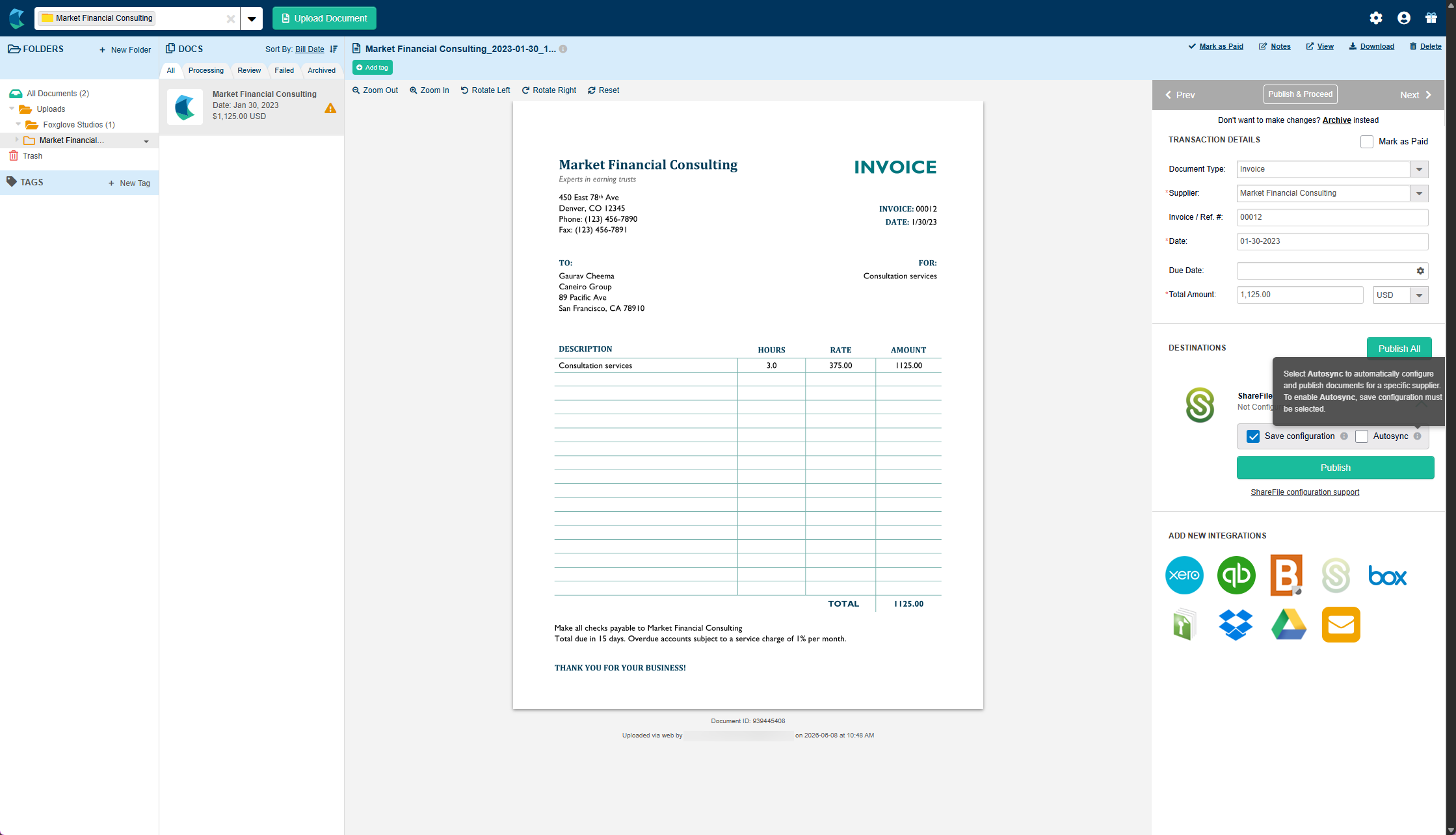
In the Destinations panel, configure the publish options for this document:
- Save configuration — Saves the current settings for this supplier.
- Autosync — Automatically publishes future documents from this supplier to ShareFile. To enable Autosync, select it and click Save configuration first.
-
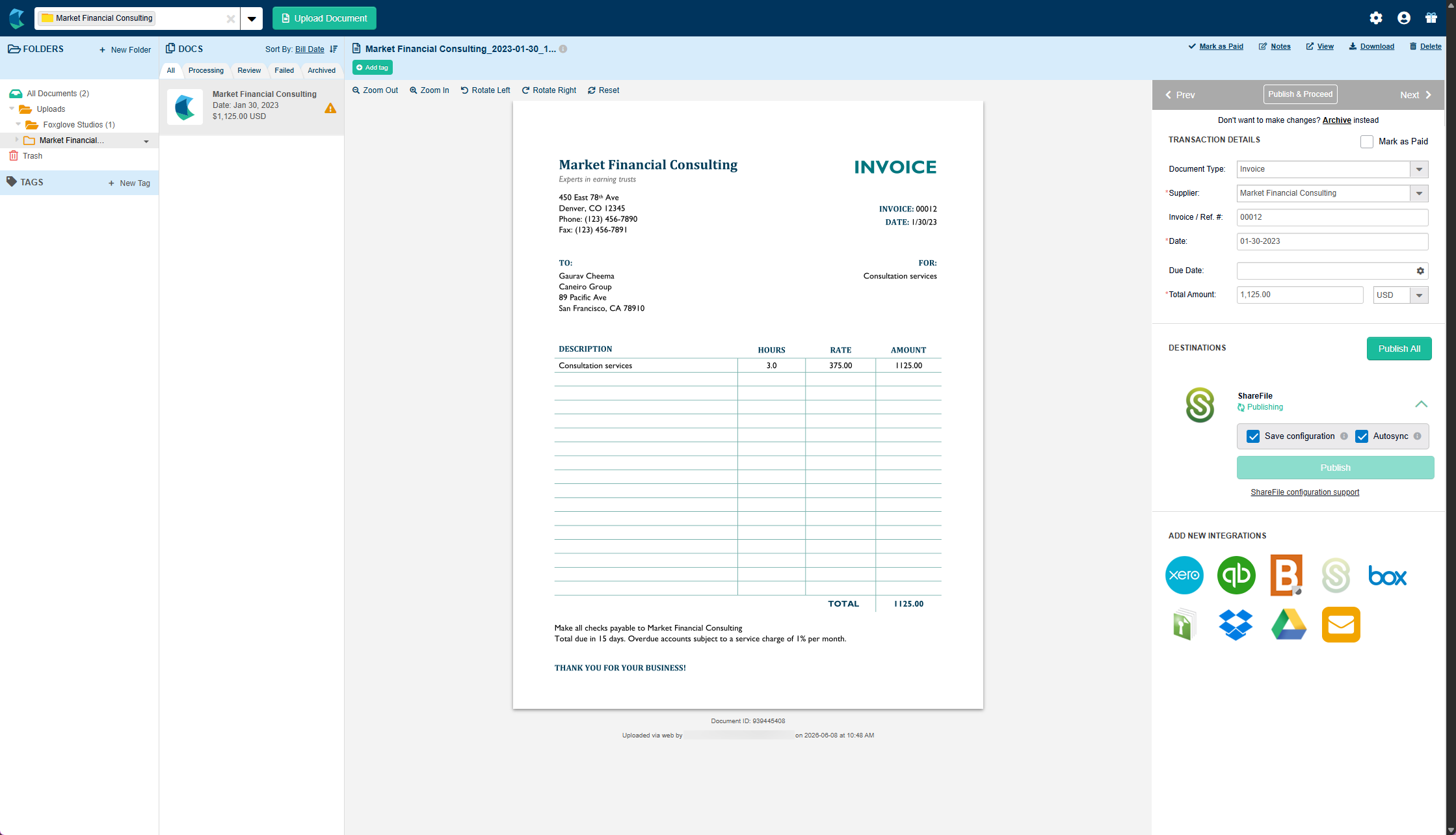
Click Publish to send the document to ShareFile. The destination status updates to Publishing.
When complete, the status updates to Published with a timestamp and the account used.
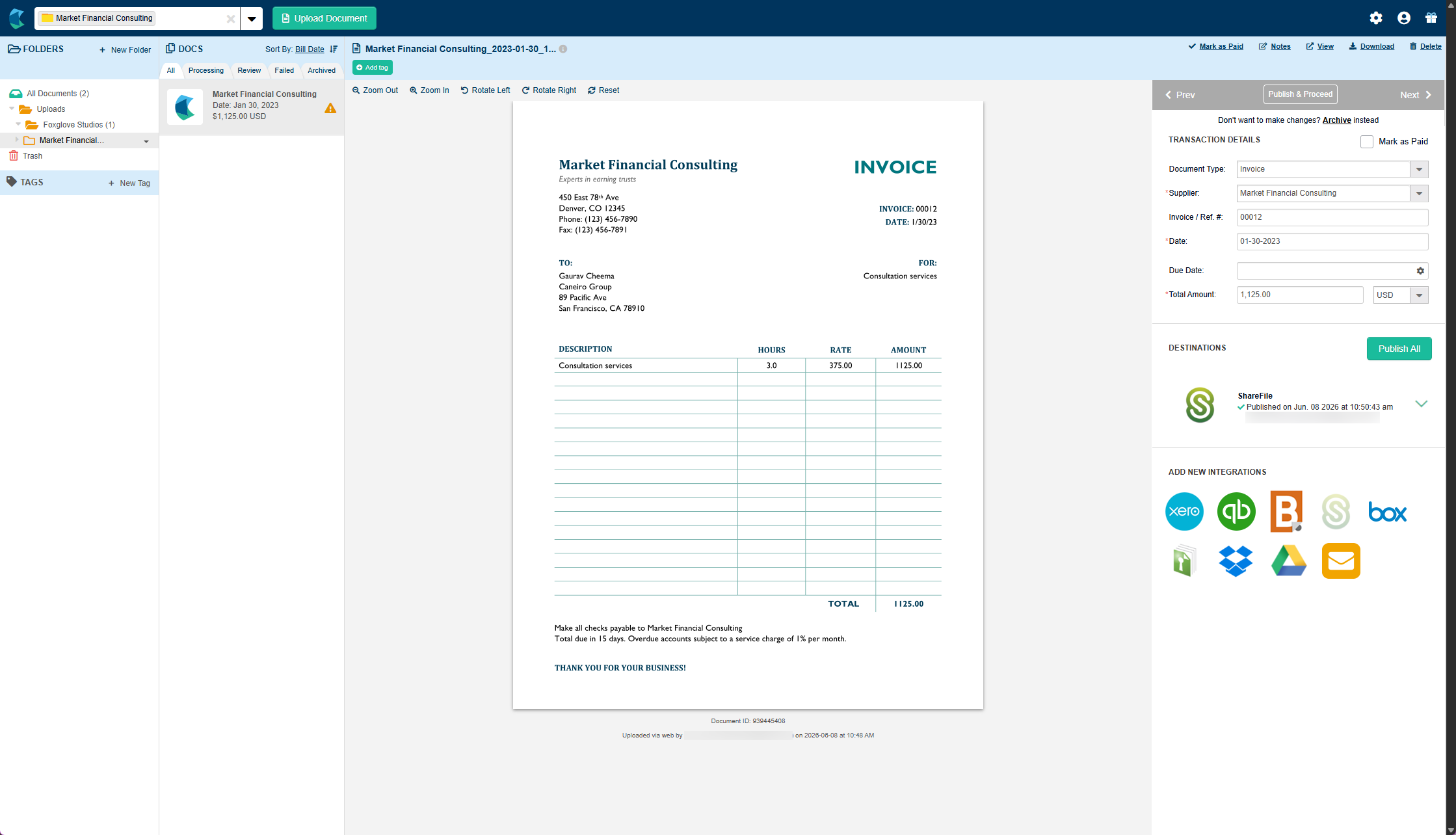
To publish all documents at once, click Publish All in the Destinations panel.
Verify documents in ShareFile
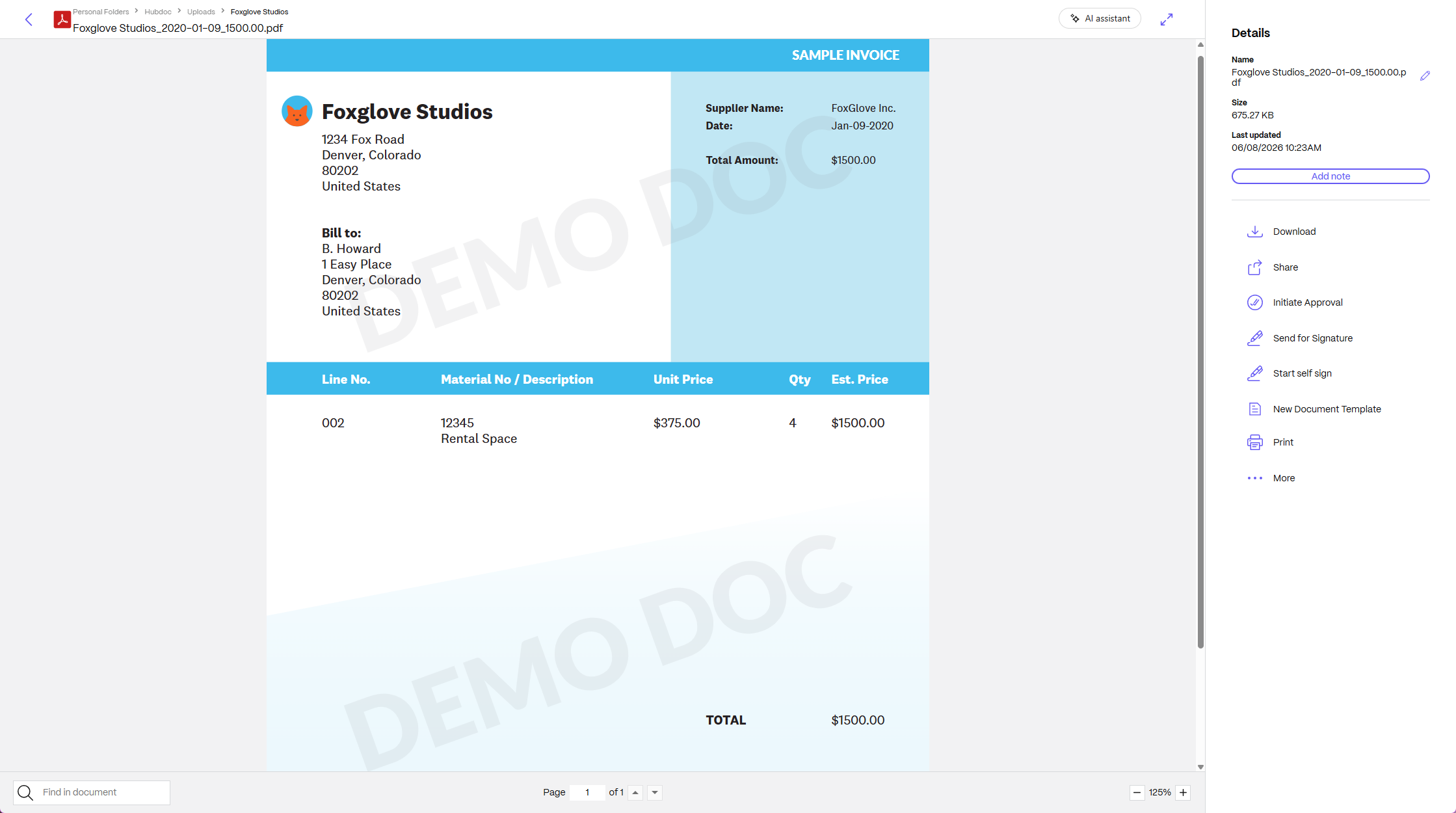
After publishing, the document appears in the configured destination folder in ShareFile.
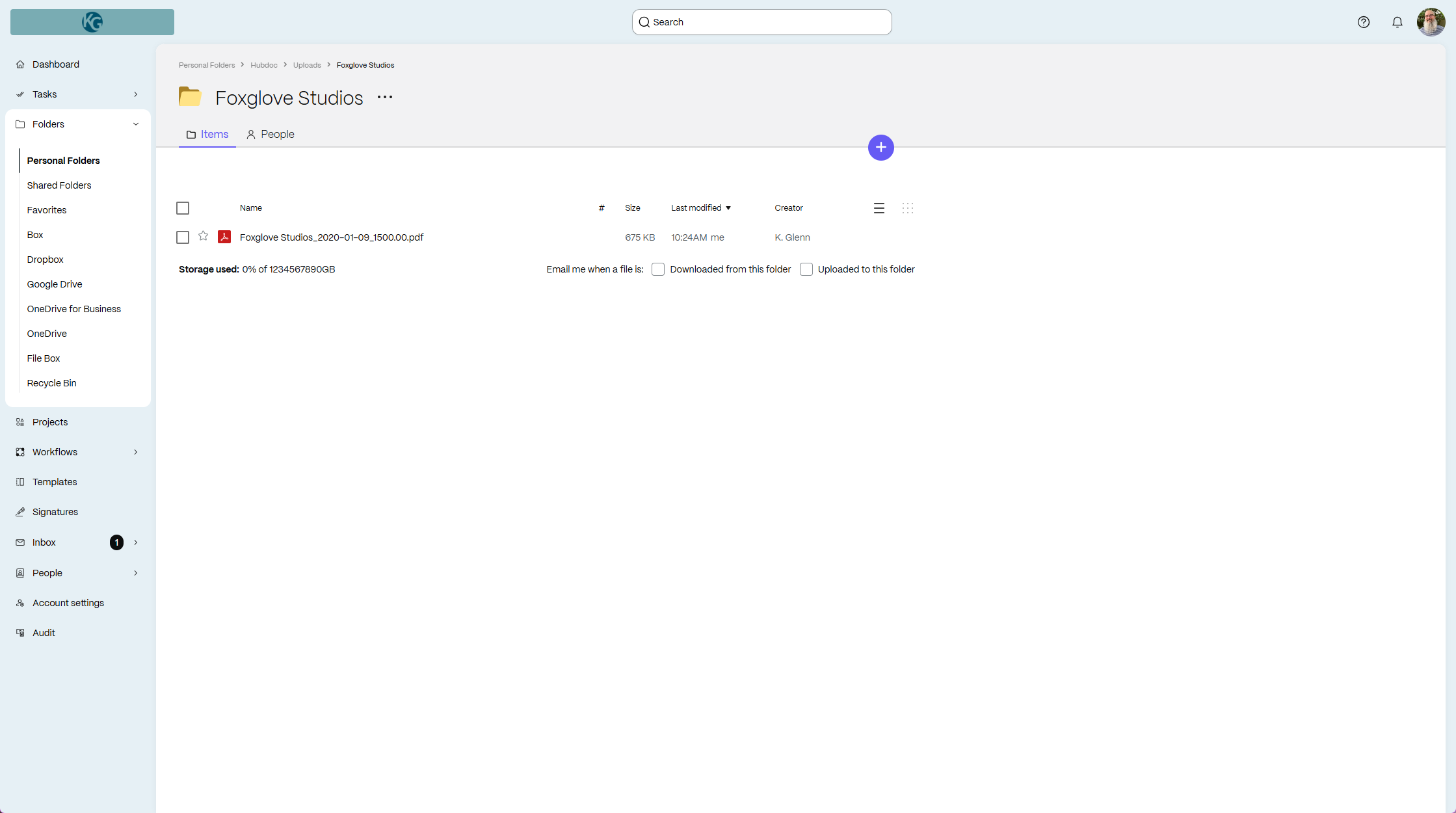
Open the document to confirm it is accessible and stored correctly.
Common use cases
- Automated document backup — Automatically sync financial documents captured in Hubdoc to ShareFile for secure, organized storage.
- Accountant and client document management — Accountants managing multiple client organizations in Hubdoc can store each client’s documents in separate ShareFile folders within a single account.
- Centralized document repository — Use Hubdoc for document capture and processing while ShareFile serves as the centralized system for accessing and sharing finalized documents.
Troubleshooting
| Issue | Resolution |
|---|---|
| Documents already published to ShareFile are not re-sent | Published documents are flagged in Hubdoc and will not sync again unless manually republished. |
| Renaming or moving folders in Hubdoc creates new folders in ShareFile | Folder changes in Hubdoc are not applied retroactively to existing ShareFile folders. |
| Folder structure sync fails or produces unexpected results | Special characters in Hubdoc folder names are not supported by ShareFile. Rename affected folders to remove unsupported characters. |
| Document status changes unexpectedly after publishing | Publishing a document updates its status in Hubdoc. Verify document state before and after publishing. |
Additional resources
Share
Share
This Preview product documentation is Citrix Confidential.
You agree to hold this documentation confidential pursuant to the terms of your Citrix Beta/Tech Preview Agreement.
The development, release and timing of any features or functionality described in the Preview documentation remains at our sole discretion and are subject to change without notice or consultation.
The documentation is for informational purposes only and is not a commitment, promise or legal obligation to deliver any material, code or functionality and should not be relied upon in making Citrix product purchase decisions.
If you do not agree, select I DO NOT AGREE to exit.