This content has been machine translated dynamically.
Dieser Inhalt ist eine maschinelle Übersetzung, die dynamisch erstellt wurde. (Haftungsausschluss)
Cet article a été traduit automatiquement de manière dynamique. (Clause de non responsabilité)
Este artículo lo ha traducido una máquina de forma dinámica. (Aviso legal)
此内容已经过机器动态翻译。 放弃
このコンテンツは動的に機械翻訳されています。免責事項
이 콘텐츠는 동적으로 기계 번역되었습니다. 책임 부인
Este texto foi traduzido automaticamente. (Aviso legal)
Questo contenuto è stato tradotto dinamicamente con traduzione automatica.(Esclusione di responsabilità))
This article has been machine translated.
Dieser Artikel wurde maschinell übersetzt. (Haftungsausschluss)
Ce article a été traduit automatiquement. (Clause de non responsabilité)
Este artículo ha sido traducido automáticamente. (Aviso legal)
この記事は機械翻訳されています.免責事項
이 기사는 기계 번역되었습니다.책임 부인
Este artigo foi traduzido automaticamente.(Aviso legal)
这篇文章已经过机器翻译.放弃
Questo articolo è stato tradotto automaticamente.(Esclusione di responsabilità))
Translation failed!
Redtail CRM integration for ShareFile
The Redtail CRM integration connects ShareFile as a document storage location within Redtail CRM. When configured, users can link ShareFile folders to Redtail contact records, access and view ShareFile documents directly from within the CRM, and organize client-related documents without leaving Redtail.
This integration enables financial advisors and their teams to centralize document access while leveraging ShareFile for secure file storage and sharing.
Configuration is managed entirely within Redtail CRM. No setup is required on the ShareFile side beyond having an active account.
Prerequisites
Before enabling the integration, make sure you have the following:
- An active ShareFile account
- An active Redtail CRM account with administrator access to enable integrations
- Your ShareFile username, password, and account subdomain (for example,
yourfirm.sharefile.com)
Enable the integration in Redtail CRM
A Redtail database administrator must complete this step.
-
Open the profile dropdown in the upper-right corner of Redtail CRM and select Manage Your Integrations.
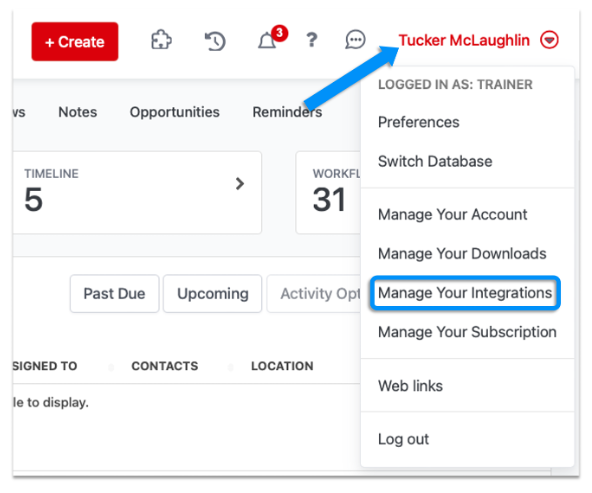
- Locate ShareFile and confirm that the toggle is turned on.
- Click the settings cog next to the toggle and select Settings.
-
In the Update Integration Settings dialog, enter your ShareFile username, password, and account domain.
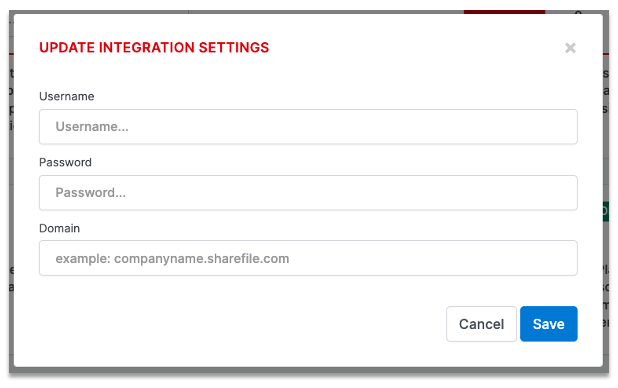
Note:
Enter the domain without a
https://prefix (for example,yourfirm.sharefile.com). Includinghttps://will cause the integration to fail. The domain must includesharefile.com. - Click Save.
Link ShareFile folders to contact records
After the integration is enabled, users can link ShareFile folders to individual contact records.
- Open the contact record in Redtail CRM.
- Select Documents from the contact’s left-side navigation menu.
- Click ShareFile Documents in the Document Views widget on the right side of the page.
-
Click Link to a ShareFile folder and follow the on-screen prompts.
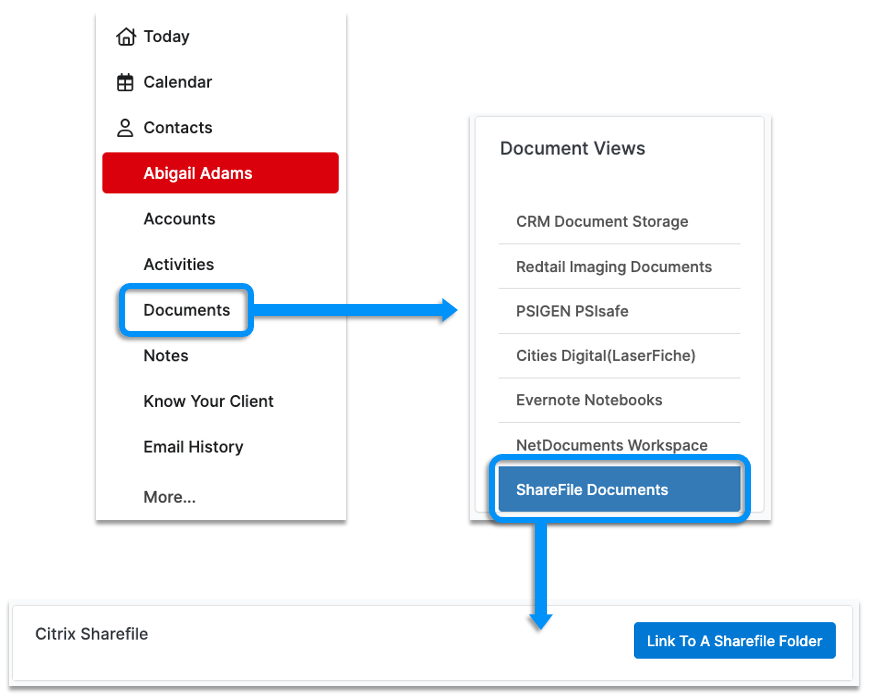
Once a folder is linked, click any file in the ShareFile Documents view to open and view it directly from within Redtail CRM.
Set up an application-specific password for MFA
If your ShareFile account uses multi-factor authentication (MFA), Redtail requires an application-specific password instead of your regular ShareFile password.
To create an application-specific password in ShareFile:
- Go to Personal Settings > Personal Security > Two-Step Verification > Application Specific Passwords.
- Click Create a Password.
- Enter a label for the password (for example,
Redtail CRM) and click Generate. - Copy the generated password and enter it in the Password field in Redtail’s integration settings.
Troubleshooting
| Issue | Resolution |
|---|---|
| Integration fails to connect | Verify that the domain does not include a https:// prefix and that it contains sharefile.com. |
| Authentication error | Confirm that the ShareFile username and password are correct and that the account is active. |
| MFA login fails | If MFA is enabled, use an application-specific password instead of your regular ShareFile password. |
| ShareFile Documents view is empty after linking | Verify that a ShareFile folder has been linked to the contact record. Follow the steps in Link ShareFile folders to contact records. |
For Redtail-specific issues, contact Redtail support directly.
Additional resources
Share
Share
This Preview product documentation is Citrix Confidential.
You agree to hold this documentation confidential pursuant to the terms of your Citrix Beta/Tech Preview Agreement.
The development, release and timing of any features or functionality described in the Preview documentation remains at our sole discretion and are subject to change without notice or consultation.
The documentation is for informational purposes only and is not a commitment, promise or legal obligation to deliver any material, code or functionality and should not be relied upon in making Citrix product purchase decisions.
If you do not agree, select I DO NOT AGREE to exit.