This content has been machine translated dynamically.
Dieser Inhalt ist eine maschinelle Übersetzung, die dynamisch erstellt wurde. (Haftungsausschluss)
Cet article a été traduit automatiquement de manière dynamique. (Clause de non responsabilité)
Este artículo lo ha traducido una máquina de forma dinámica. (Aviso legal)
此内容已经过机器动态翻译。 放弃
このコンテンツは動的に機械翻訳されています。免責事項
이 콘텐츠는 동적으로 기계 번역되었습니다. 책임 부인
Este texto foi traduzido automaticamente. (Aviso legal)
Questo contenuto è stato tradotto dinamicamente con traduzione automatica.(Esclusione di responsabilità))
This article has been machine translated.
Dieser Artikel wurde maschinell übersetzt. (Haftungsausschluss)
Ce article a été traduit automatiquement. (Clause de non responsabilité)
Este artículo ha sido traducido automáticamente. (Aviso legal)
この記事は機械翻訳されています.免責事項
이 기사는 기계 번역되었습니다.책임 부인
Este artigo foi traduzido automaticamente.(Aviso legal)
这篇文章已经过机器翻译.放弃
Questo articolo è stato tradotto automaticamente.(Esclusione di responsabilità))
Translation failed!
Multi-Factor authentication
ShareFile’s multi-factor authentication utilizes additional factors like an authenticator app, text message or voice calls in addition to the ShareFile password to provide an extra layer of security when logging into your ShareFile account.
Administrators can customize the multi-factor authentication options available to Employee users and Client contacts.
Notes:
- ShareFile’s multi-factor authentication is enforced for all employees on all ShareFile accounts.
- Admins can disable the enforcement of ShareFile’s multi-factor authentication for Employee users, Client contacts or all users so they aren’t required to use it. However, users can still choose to leverage multi-factor authentication.
- Multi-Factor authentication is supported on iOS and Android mobile devices.
- Some apps require an app-specific password that must be generated each time you want to sign in to the app.
Supported Apps
Once enabled, these apps may use Multi-Factor for authentication:
- ShareFile for Windows
- ShareFile for Mac
- ShareFile for Outlook
- ShareFile for iOS
- ShareFile for Android
Note:
ShareFile for Outlook users may need to re-authenticate to their plugin after enabling Multi-Factor authentication.
Unsupported Apps
The following apps do not support the Multi-Factor authentication feature. If Multi-Factor authentication is enabled for your account, you will need to generate an application-specific password to login to these tools:
- FTP
- User Management Tool
- Custom API script
- Storage zone controller configuration page
- Legacy Applications
Limitations for Application-Specific Password:
Application-specific password do not need to be generated each time the user signs in.
Must be securely saved when generated — they cannot be recovered later.
If an Application-Specific Password is lost:
- A new one must be generated
- The previous password should be deleted
Edit Multi-Factor authentication methods
Administrators can choose to make multi-factor authentication required or not for either user type or disable the functionality all together (not recommended). Administrators can also choose to remove multi-factor authentication methods for certain user types.
Advisory
ShareFile doesn’t recommend disabling multi-factor authentication for any type of user as it provides an additional layer of security on top of passwords.
Multi-Factor Authentication
To configure Multi-Factor authentication for your Employee users and Client Contacts:
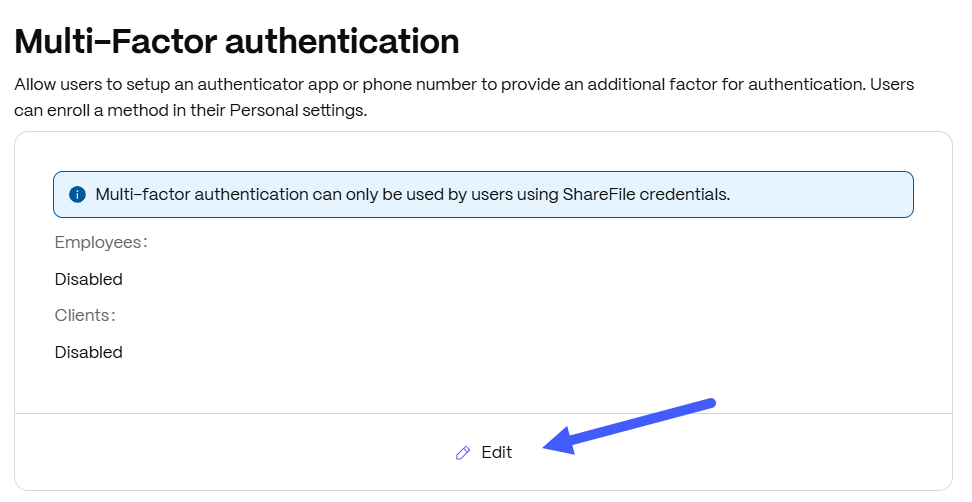
- Navigate to Account settings > Security > Sign in policy > Multi-Factor authentication.
-
Click Edit:
- From the Multi-factor authentication drawer:
- Toggle Multi-Factor Authentication for Employee users and/or Client contacts.
- Click the Required checkbox if you want to enforce multi-factor authentication. We suggest making it required
Note:
Any newly created users that are being required to use multi-factor authentication will be asked to configure one of the available authentication methods during the user activation flow.
- Choose the verification methods options for your users.
- Authentication apps - Such as Google Authenticator App and Microsoft Authenticator App. These applications are available on both iOS and Andoid.
- Phone numbers
- Click Save.
Advisory
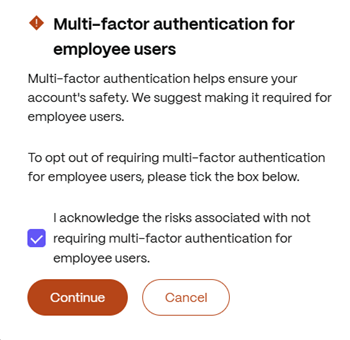
Admins who prefer to disable the two-step verification enforcement for Employee users can opt out by acknowledging the risks associated with not requiring multi-factor authentication in the opt out waiver.
If you disable any multi-factor verification methods in your account’s multi-factor authentication configuration, any users leveraging those methods may have to reconfigure their multi-factor authentication settings on their next log-in.
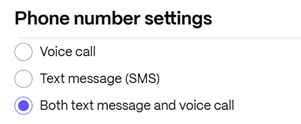
Phone number settings
The phone number setting allows Administrators to choose what type of phone verification options their end users can configure on their account. By default, the Both text message and voice call option is selected. You can adjust this setting to one or the other type.
If phone numbers are a disabled verification method, this box will not be present.
Limitations for VoIP Phone Services:
ShareFile is unable to support or guarantee that SMS messages and Voice Verify calls can be delivered to Google Voice and other numbers using VoIP (Voice over IP). The providers ShareFile uses for these services cannot ensure delivery to non-mobile numbers. This is a typical industry-wide practice to maintain secure and dependable authentication flows.
Common Multi-factor authentication sign in Issues
-
SMS Code Not Received
If a verification code is not received via SMS, try the following steps:
- Restart the mobile device
- Retry Multi-factor authentication code delivery
- Wait 1–2 minutes before requesting another code
- Avoid requesting multiple codes back to back — only the most recent code is valid
- Confirm you are entering the latest code, as previous codes expire immediately after a new request
- If available, try:
- Voice call
- SMS again to confirm whether the issue is method specific
Note:
VoIP phone numbers (for example, Google Voice) may not reliably receive SMS or voice multi-factor authentication codes due to provider limitations.
-
Verify phone number
This is only possible if the user still has access through another verification method:
- Navigate to Personal settings > Sign in options > Manage multi factor > Methods.
- Confirm the phone number is correct.
-
Lost Access to Authenticator App or New Phone
This commonly occurs after replacing a device or removing the authenticator app
-
If backup codes were previously generated:
If you have previously generated backup codes, use one of the codes to sign in. For more information, see Use Backup Codes to Regain Access.
-
If no alternate verification methods exist:
Contact a ShareFile account administrator to reset MFA
Note:
ShareFile Support cannot reset multi-factor authentication for users. This action can only be performed by an account administrator.
-
Invalid Authenticator Code
If authenticator app codes are rejected:
- Ensure the device date, time, and time zone are set to Automatic.
- Wait for a new 6 - digit code before retrying.
- Confirm the correct ShareFile profile is selected if multiple accounts exist.
-
Retry using only the latest code.
If the issue persists, proceed with a Multi-factor authentication reset.
Use Backup Codes to Regain Access
Backup codes provide a recovery option when standard Multi-factor authentication methods are unavailable.
-
At the sign in screen, select Use another method
-
Choose Backup codes.
-
Enter one unused backup code
-
Click Sign In
Notes:
-
Backup codes are single use only.
-
Codes are system generated and should be stored securely by the user.
-
Generate a new batch after multiple codes have been used
-
Reset Multi-Factor Authentication for Affected Users (Admin)
Only ShareFile administrators can reset multi-factor authentication for users.
-
Navigate to People.
-
Select Browse Employees or Browse Client Contacts.
-
Select the affected user
-
Under Actions, select Reset Multi Factor Authentication.
-
Confirm by clicking Reset.
After the reset, the user will be prompted to reconfigure their multi-factor authentication during their next sign in.
Reset Multi-Factor Authentication for Master Admin or Account Owner
Administrators with ‘Manage employees’ permission can reset Multi-factor authentication for all users except the account owner.
Limitations:
If the affected user is the Master Admin or Account Owner, Multi-factor Authentication cannot be reset by another administrator.
The account owner cannot self-service this reset.
An administrator that requires their Multi-factor authentication to be reset must contact ShareFile Support for assistance.
Understanding “Don’t Ask Again on This Device” in Two-Step Verification
Two-step verification (multi-factor authentication) adds an extra layer of security to your account by requiring a second form of authentication during login. As part of this process, users may see an option labeled Don’t ask again on this device. This article explains how this feature works, what to expect, and how browser settings can impact its behavior.
What Does “Don’t Ask Again on This Device” Do?
When selected, this option marks the current device and browser as trusted, allowing you to skip multi-factor authentication prompts for subsequent logins on the same device. This helps reduce the need for repeated verification while maintaining account security.
How It Works
The trusted device setting is stored locally in your browser using cookies/cache.
- When you select the option, a token is saved in the browser
- On future logins, this token is used to recognize the device
- If valid, multi-factor authentication prompts are skipped
Dependency on Browser Cookies
The trusted device setting relies entirely on browser cookies. If cookies are not retained, the setting will not persist.
-
Clearing Cache or Cookies
If browser cookies or cache are cleared:
- The trusted device token is removed
- You will be prompted for multi-factor authentication again, even if you previously selected the option
-
Auto-Clear Browser Settings
If your browser is configured to:
- Automatically clear cookies on exit
- Use strict privacy settings
- You will be prompted for multi-factor authentication at every login
Why You May Still See Multi-Factor Authentication Prompts
Even after selecting Don’t ask again on this device, you may still be prompted for Multi-factor authentication due to:
- Cookies or cache being cleared manually
- Browser settings that block or auto-delete cookies
- Use of private/incognito browsing sessions
- Security policies requiring re-authentication
Best Practices
-
To Reduce MFA Prompts
- Ensure cookies are enabled in your browser
- Disable automatic cookie clearing (if appropriate)
- Use a consistent browser and device
- Avoid incognito/private browsing for regular logins
-
Security Considerations
- Avoid selecting this option on shared or public devices
- Trusted device settings reduce multi-factor authentication prompts but should be used carefully
- Regular multi-factor authentication prompts may be required in high-security environments
Share
Share
In this article
- Supported Apps
- Unsupported Apps
- Edit Multi-Factor authentication methods
- Common Multi-factor authentication sign in Issues
- Use Backup Codes to Regain Access
- Reset Multi-Factor Authentication for Affected Users (Admin)
- Reset Multi-Factor Authentication for Master Admin or Account Owner
- Understanding “Don’t Ask Again on This Device” in Two-Step Verification
- Dependency on Browser Cookies
- Why You May Still See Multi-Factor Authentication Prompts
- Best Practices
This Preview product documentation is Citrix Confidential.
You agree to hold this documentation confidential pursuant to the terms of your Citrix Beta/Tech Preview Agreement.
The development, release and timing of any features or functionality described in the Preview documentation remains at our sole discretion and are subject to change without notice or consultation.
The documentation is for informational purposes only and is not a commitment, promise or legal obligation to deliver any material, code or functionality and should not be relied upon in making Citrix product purchase decisions.
If you do not agree, select I DO NOT AGREE to exit.