This content has been machine translated dynamically.
Dieser Inhalt ist eine maschinelle Übersetzung, die dynamisch erstellt wurde. (Haftungsausschluss)
Cet article a été traduit automatiquement de manière dynamique. (Clause de non responsabilité)
Este artículo lo ha traducido una máquina de forma dinámica. (Aviso legal)
此内容已经过机器动态翻译。 放弃
このコンテンツは動的に機械翻訳されています。免責事項
이 콘텐츠는 동적으로 기계 번역되었습니다. 책임 부인
Este texto foi traduzido automaticamente. (Aviso legal)
Questo contenuto è stato tradotto dinamicamente con traduzione automatica.(Esclusione di responsabilità))
This article has been machine translated.
Dieser Artikel wurde maschinell übersetzt. (Haftungsausschluss)
Ce article a été traduit automatiquement. (Clause de non responsabilité)
Este artículo ha sido traducido automáticamente. (Aviso legal)
この記事は機械翻訳されています.免責事項
이 기사는 기계 번역되었습니다.책임 부인
Este artigo foi traduzido automaticamente.(Aviso legal)
这篇文章已经过机器翻译.放弃
Questo articolo è stato tradotto automaticamente.(Esclusione di responsabilità))
Translation failed!
Storage Quotas
Storage quotas is a feature for Enterprise accounts that allows ShareFile administrators to set storage quotas on a given user based on their Personal Folders and File Box storage. Users will receive email notifications when they are nearing their quota and upload functions disabled when they reach their quota. This can be applied to both cloud and on-prem storage.
Enable Account-Wide Quota
- Navigate to Account settings > Advanced Preferences > File Settings > Storage Quota to select the option to enable this feature and choose what you wish the account-wide default quota to be. This number must be a whole number and may not be smaller than 1 GB.
- Check the box “Prohibit users from exceeding storage limit* if you want uploads to be disabled.
- Save changes.
At any point you may come back to this section to change the account’s default quota.
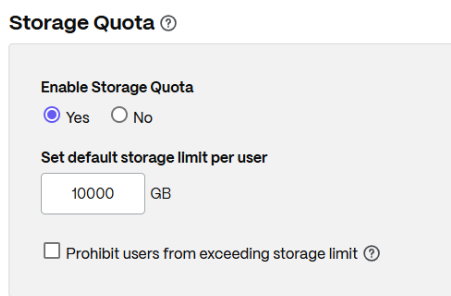
Set a User’s Quota
While all employee user’s will automatically be set to the default account-wide quota, it is possible to specify a unique quota for a user.
- Navigate People > Manage Users to browse or search users and use the Manage icon to open their profile page.
- The user’s individual quota can be set in the File and Folder Management section. This number must be a whole number and may not be smaller than 1 GB.
Checking your storage
Storage Used is indicated at the bottom of the Personal Folders and File Box sections of your account.
What happens when I reach my quota?
When you have reached 90% of your allotted storage quota, you will receive daily emails that you are nearing your quota limit. You will continue to receive daily emails until you lower your storage usage below 90% of your storage quota, or a ShareFile administrator raises your quota. If you have exceeded your quota, you will receive in-app notification when you log in to your ShareFile site warning that you have exceeded your allotted storage quota.
Notes:
Before the quota is reached, any upload is allowed, even the file size may exceed the quota.
If the setting to prohibit users from exceeding storage limit is enabled by the administrator, users will also have uploads disabled on:
- Web
- ShareFile for Windows 4.3 or later
- ShareFile for Android 7.3 or later
- ShareFile for Outlook 6.2 or later
- ShareFile for Mac 4.3 or later
- ShareFile for iOS 7.6 or later
Users over quota will be required to deleted access files until they are no longer over their storage limit, at which point their ability to upload will be restored.
Web Notifications
Users will be presented with a warning icon in the left navigation panel next to their Personal Folders and File Box. They will also be presented with a warning message when file uploads fail. Certain functions listed below that increase the user’s storage will also be unavailable in the interface.
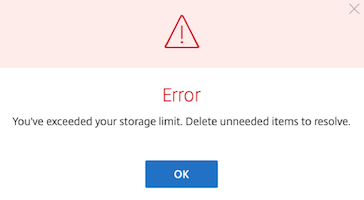
ShareFile Notifications
Users will also be presented with a warning message when file uploads fail. Certain functions listed below that increase the user’s storage will also be unavailable in the interface.
Mobile Notifications
When a file upload fails due to being over quota, those files will remain in their queue until below quota. The error message will be presented for each file in queue that failed to upload due to being over quota.
Unsupported Tools
The tools listed below will not prohibit upload functions and will allow users to exceed their storage quota. We recommend account administrators disable all unsupported tools listed below.
- Desktop for Windows
- Desktop for Mac
- Sync
- DriveMapper
- ShareFile for Outlook
- ShareFile for Gmail
- ShareFile for Gmail
Storage Not Counted Against Quota
- Root-level shared folders - You may remove a user’s ability to create root-level shared folders in the user’s profile page under User Access > Files and Folder > Create root-level folders in Shared Folders.
- Recycle bin
Upload Functions Disabled While Over Quota
- File upload
- Restore file
- Copy file
- Move file
- Share a local file
- Request a link
- Create document, spreadsheet, and presentation
Uploads Permitted While Over Quota
- Existing request a links
- Connector shares
- Encrypted email replies
- Recurring auto-generated reports
- Workflows & E-signatures
- Co-editing file versions
- Third-party API calls
- Folder reassignment
- Migration tool
Disclaimer
To the extent Customer subscribes to a ShareFile plan with unlimited cloud storage, Customer shall be entitled to 1TB of storage per User with the ability to increase upon request for reasonable use as intended hereunder.
Share
Share
In this article
This Preview product documentation is Citrix Confidential.
You agree to hold this documentation confidential pursuant to the terms of your Citrix Beta/Tech Preview Agreement.
The development, release and timing of any features or functionality described in the Preview documentation remains at our sole discretion and are subject to change without notice or consultation.
The documentation is for informational purposes only and is not a commitment, promise or legal obligation to deliver any material, code or functionality and should not be relied upon in making Citrix product purchase decisions.
If you do not agree, select I DO NOT AGREE to exit.