-
-
-
Export ShareFile files to integrated applications
-
-
-
-
-
-
-
-
This content has been machine translated dynamically.
Dieser Inhalt ist eine maschinelle Übersetzung, die dynamisch erstellt wurde. (Haftungsausschluss)
Cet article a été traduit automatiquement de manière dynamique. (Clause de non responsabilité)
Este artículo lo ha traducido una máquina de forma dinámica. (Aviso legal)
此内容已经过机器动态翻译。 放弃
このコンテンツは動的に機械翻訳されています。免責事項
이 콘텐츠는 동적으로 기계 번역되었습니다. 책임 부인
Este texto foi traduzido automaticamente. (Aviso legal)
Questo contenuto è stato tradotto dinamicamente con traduzione automatica.(Esclusione di responsabilità))
This article has been machine translated.
Dieser Artikel wurde maschinell übersetzt. (Haftungsausschluss)
Ce article a été traduit automatiquement. (Clause de non responsabilité)
Este artículo ha sido traducido automáticamente. (Aviso legal)
この記事は機械翻訳されています.免責事項
이 기사는 기계 번역되었습니다.책임 부인
Este artigo foi traduzido automaticamente.(Aviso legal)
这篇文章已经过机器翻译.放弃
Questo articolo è stato tradotto automaticamente.(Esclusione di responsabilità))
Translation failed!
Export ShareFile files to integrated applications
ShareFile export integrations allow users to export files to a connected third party application saving time, reducing errors, and streamline your workflow. File export works from both your projects and folder files.
We currently offer export ability with the following products:
Note:
If this is your first time using integrations, select Browse Integrations to access the Catalog. See Browse integrations in the ShareFile Catalog for more information.
FreshBooks
Use the following instructions to export files to Freshbooks from ShareFile.
-
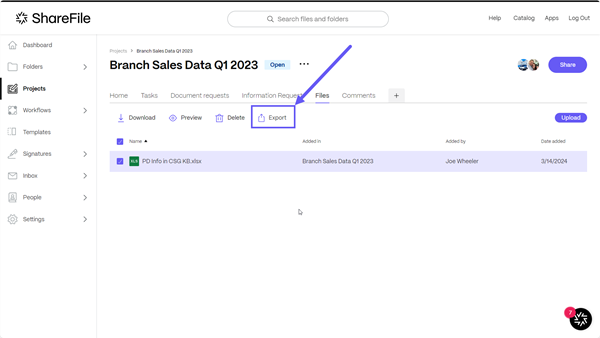
In ShareFile, navigate to the Project > Files tab or to a specific ShareFile Folder.
-
Select one or more files.
-
Select Export.
-
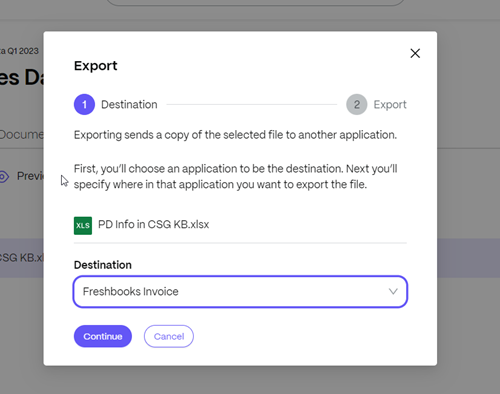
Choose Destination to specify the third-party system where the files are exported.
-
Select Continue to start the export to Freshbooks.
Files might take a few minutes to show up in the third party tool depending on the size and the number of files exported.
Pipedrive
Use the following instructions to export files to Sage from ShareFile.
-
In ShareFile, navigate to the Project > Files tab or to a specific ShareFile Folder.
-
Select one or more files.
-
Select Export.
-
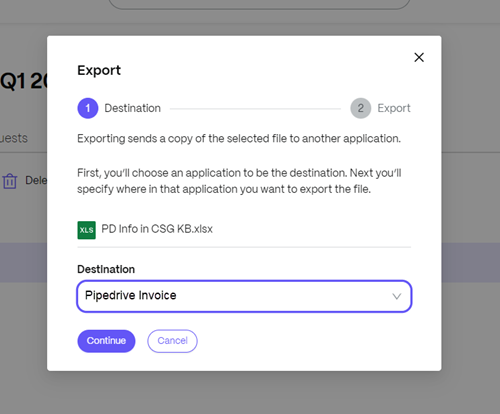
Choose Destination to specify the third-party system where the files are exported.
-
Select Continue to start the export to Pipedrive.
Files might take a few minutes to show up in the third party tool depending on the size and the number of files exported.
QuickBooks
Use the following instructions to export files to QuickBooks from ShareFile.
-
In ShareFile, navigate to the Project > Files tab or to a specific ShareFile Folder.
-
Select one or more files.
-
Select Export.
-
Choose Destination to specify the third-party system where the files are exported.
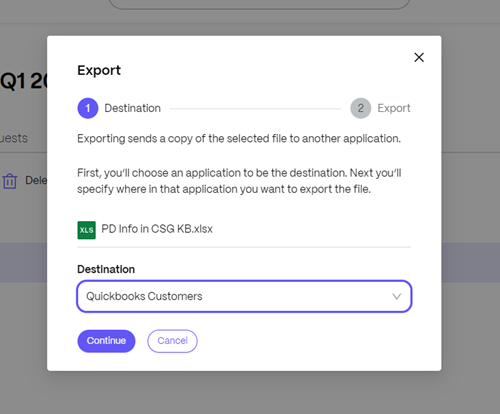
Files might take a few minutes to show up in the third party tool depending on the size and the number of files exported.
Salesforce
Use the following instructions to export files to Salesforce from ShareFile.
-
In ShareFile, navigate to Project > Files tab or to a specific ShareFile Folder.
-
Select one or more files.
-
Select Export.
-
Choose Destination to specify the third-party system where the files are exported.
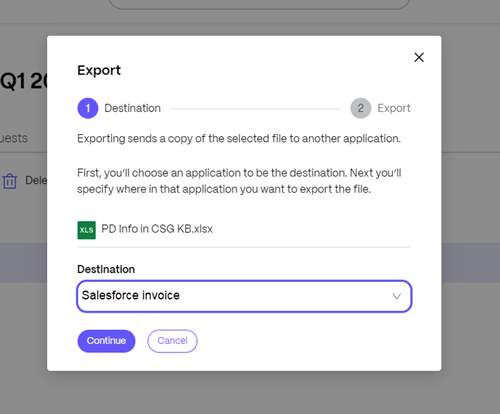
Files might take a few minutes to show up in the third party tool depending on the size and the amount of files exported.
Xero
Use the following instructions to export files to Xero from ShareFile.
-
In ShareFile, navigate to the Project > Files tab or to a specific ShareFile Folder.
-
Select one or more files.
-
Select Export.
-
Choose Destination to specify the third-party system where the files are exported.
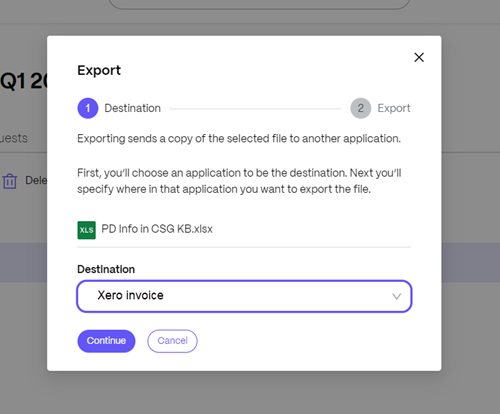
Files might take a few minutes to show up in the third party tool depending on the size and the number of files exported.
Advisory:
Starting September 9, 2025, the EU control plane will no longer support the following integrations:
- Salesforce File Export
- QuickBooks File Export
- FreshBooks File Export
- Pipedrive File Export
- QuickBooks Document Generator
- Salesforce Document Generator
Transparent Progress on Long-Running Automation Processes
Overview
Transparent Automation Progress by ShareFile gives users confidence that the process automations are working as expected by surfacing real-time status, progress, and outcomes directly in the ShareFile UI. Instead of guessing whether something is happening behind the scenes, you can now see exactly what’s running, what’s completed, and when action may be required.
This new enhancement introduces transparent, real-time visibility into automation execution across ShareFile. Users can clearly see when an automation starts, is running, completes, or fails, reducing uncertainty, duplicate actions, and support requests.
Who Benefits
Enabled for ShareFile Plans
-
Plans: All ShareFile plans
-
Typical users:
- Employee users executing automations
- Admins monitoring operational workflows
- Support teams handling automation-related tickets
Platform Scope
- Available on: Web
- Not available on: Mobile (initial release)
Key Capabilities
| Capability | What It Does | Who Sees It |
|---|---|---|
| Automation start confirmation | Confirms immediately when an automation is triggered. | Employee user |
| Real-time status visibility | Shows whether an automation is running, completed, or failed. | Employee user |
| Long-running progress indicator | Displays “Processing” state with progress or step indication when applicable. | Employee user |
| Automation activity surface | Central place to view ongoing and recent automation activity. | Employee user, Admin |
| Failure visibility | Clearly indicates when an automation fails and requires attention. | Employee user, Admin |
Activation & Availability
Is Transparent Automation Progress enabled by default?
Yes, it is enabled for all supported automation types.
How to enable the automation feature?
No action required for the users. Supported automations automatically surface progress and status when triggered.
How to disable the automation feature?
It is currently not configurable in the initial release.
Known Limitations
- Not all automations will display real-time progress. Automations that:
- Run for extremely long durations (days, weeks, months)
- Pause for human interaction
- Execute fully in the background without user impact may not surface progress to avoid UI noise.
-
Estimated completion times may not be available for all automation types.
- Mobile support is not included in the initial release.
Example Use Case
Typical Scenario
A user triggers an automation to create engagements for multiple clients.
Without Transparent Automation Progress
The automation runs in the background with no visible feedback. The user is unsure if the process started, retries the action, or contacts support.
With Transparent Automation Progress
The user immediately sees confirmation that the automation has started. can track its processing status, and is notified upon completion or failure. Confidence increases, duplicate actions are avoided, and the workflow completes smoothly.
Frequently Asked Questions
What does Transparent Automation Progress show me?
It shows when an automation has started, is running, has completed, or has failed, so you always know what’s happening in the background.
Which automations support real-time progress?
Real-time progress is available for supported, bounded automations such as:
- Creating engagements for multiple clients
- Exporting files to third-party systems
- Template runs
Not all automations are eligible.
Why don’t I see progress for every automation?
Some automations:
- Run for very long periods
- Pause for human input
- Execute entirely in the background
To avoid UI clutter, the automation processes do not display real-time progress.
Where can I see automation progress?
Automation activity appears in notification center.
Will I get notified when an automation finishes?
Yes. You’ll see a clear status update when an automation completes or fails.
Can I see what step the automation is currently on?
When available, the UI will show the current stage or processing state of the automation. This may vary by automation type.
Does this change how automations work?
No. This feature only improves visibility. The underlying automation logic remains unchanged.
Can I turn off automation progress notifications?
No. Automation progress visibility is enabled by default for supported automations and cannot be disabled in the initial release.
Why don’t I see this feature?
Make sure:
- You’re using the web platform.
- You are running an automation that supports real-time progress.
Is this available on mobile?
No. Transparent Automation Progress is web-only in the initial release.
What happens if an automation fails?
You’ll see a failure status in the UI, indicating that the automation did not complete successfully and may require attention.
Does this feature show estimated completion time?
Estimated time is shown only when it can be reliably calculated. Some automations may display a generic “Processing” status instead.
Who can see automation progress?
Employee users running automations can see progress. Admins may also see automation status depending on their role and permissions.
Will this help reduce duplicate work?
Yes. By clearly showing automation status, users are less likely to retry actions or manually repeat tasks.
Share
Share
This Preview product documentation is Citrix Confidential.
You agree to hold this documentation confidential pursuant to the terms of your Citrix Beta/Tech Preview Agreement.
The development, release and timing of any features or functionality described in the Preview documentation remains at our sole discretion and are subject to change without notice or consultation.
The documentation is for informational purposes only and is not a commitment, promise or legal obligation to deliver any material, code or functionality and should not be relied upon in making Citrix product purchase decisions.
If you do not agree, select I DO NOT AGREE to exit.