This content has been machine translated dynamically.
Dieser Inhalt ist eine maschinelle Übersetzung, die dynamisch erstellt wurde. (Haftungsausschluss)
Cet article a été traduit automatiquement de manière dynamique. (Clause de non responsabilité)
Este artículo lo ha traducido una máquina de forma dinámica. (Aviso legal)
此内容已经过机器动态翻译。 放弃
このコンテンツは動的に機械翻訳されています。免責事項
이 콘텐츠는 동적으로 기계 번역되었습니다. 책임 부인
Este texto foi traduzido automaticamente. (Aviso legal)
Questo contenuto è stato tradotto dinamicamente con traduzione automatica.(Esclusione di responsabilità))
This article has been machine translated.
Dieser Artikel wurde maschinell übersetzt. (Haftungsausschluss)
Ce article a été traduit automatiquement. (Clause de non responsabilité)
Este artículo ha sido traducido automáticamente. (Aviso legal)
この記事は機械翻訳されています.免責事項
이 기사는 기계 번역되었습니다.책임 부인
Este artigo foi traduzido automaticamente.(Aviso legal)
这篇文章已经过机器翻译.放弃
Questo articolo è stato tradotto automaticamente.(Esclusione di responsabilità))
Translation failed!
AI-powered file renaming
Overview
The AI-powered file renaming enables users to generate consistent, structured file names using AI. The system analyzes file content and metadata to suggest standardized naming patterns based on organizational rules, dates, client identifiers, and document types. Users can preview, modify, and approve suggestions before applying them. Usage is limited to 2000 files monthly per month across the account.
This feature helps maintain clean, searchable files and supports ShareFile’s Intelligent Content Governance strategy. For FAQs, see AI-powered file renaming in Document Request List.
This AI feature is not available to users of the ShareFile Advanced plan.
Note:
This AI-powered functionality is currently in beta. Final pricing and the plans that include this feature will be announced when it becomes generally available.
Why This Matters
-
Ensures Consistency: Helps users maintain consistent file naming conventions for better document management.
-
Streamline Workflows: Reduces the time spent renaming files uploaded by clients.
-
Enhance Organization: Makes it easier for users to search, organize, and manage content effectively.
-
Simplifies Bulk Renaming: AI-powered file renaming helps users clean up large batches of files instantly, improving document discovery and reducing the workload on administrators.
How it works
AI-powered file renaming is available during the document upload and review flow. When a client uploads a document, the system analyzes and validates the attachment and suggests improved file names using the AI-assisted feature.
AI-Assisted Document Renaming (Client)
-
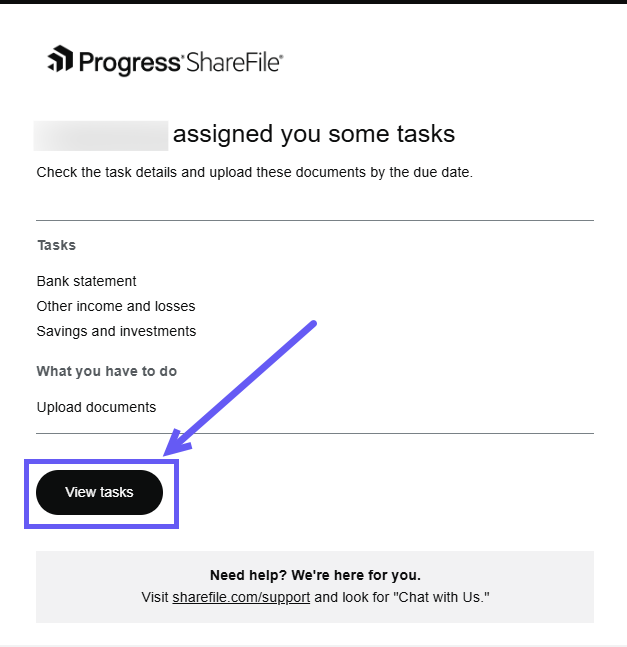
Once you receive a document request task, click on View tasks in your email.
-
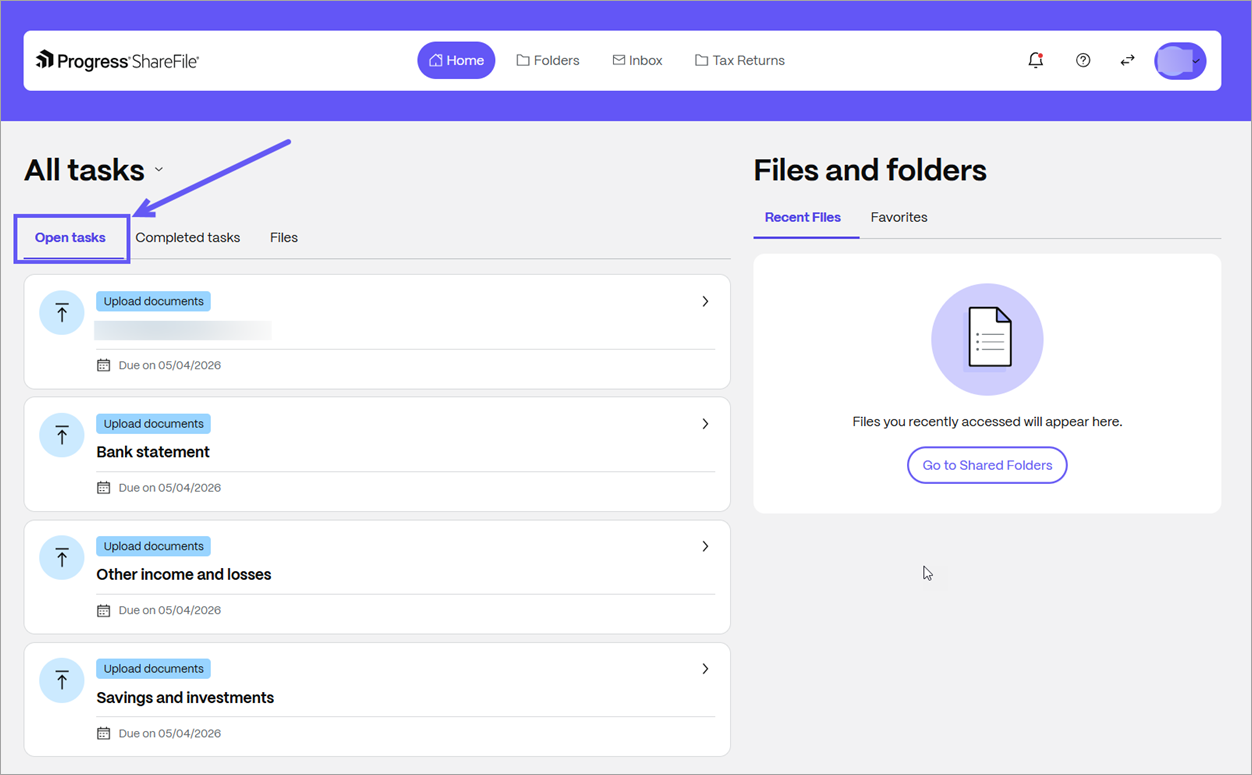
Click on Open tasks and select a file to upload a document.
-
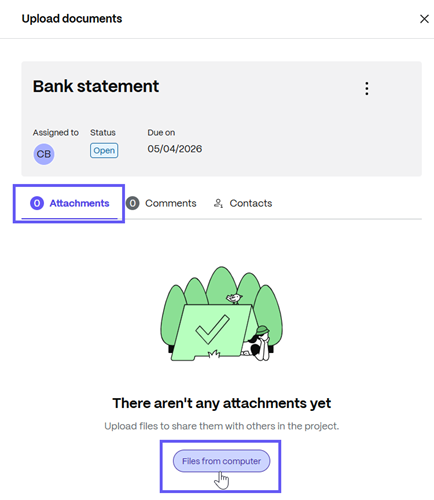
Select Attachments > Files from computer to upload one or more documents.
-
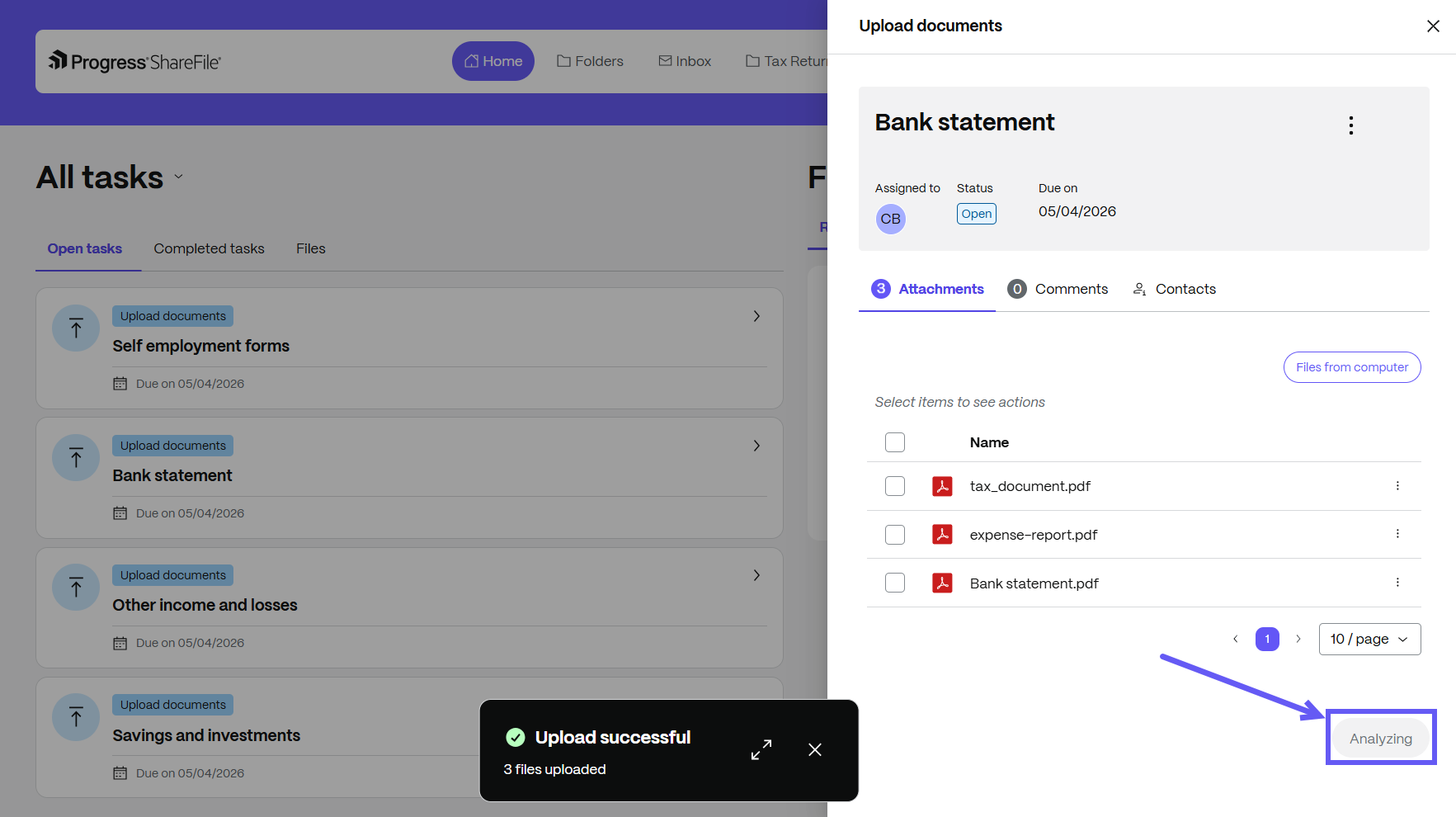
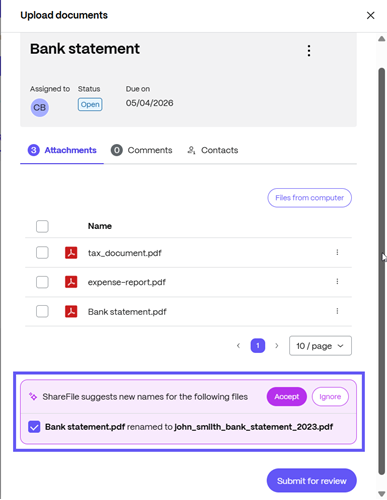
Once uploaded, the system automatically analyzes the files and provides AI-generated file name suggestions.
-
Review the suggested file name. Select a suggested file name and click Accept to rename the file.
-
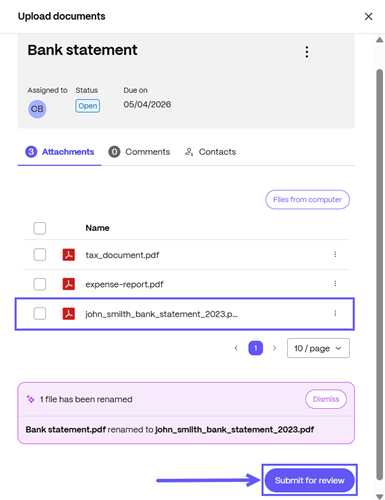
The file has been renamed. Select Submit for review.
-
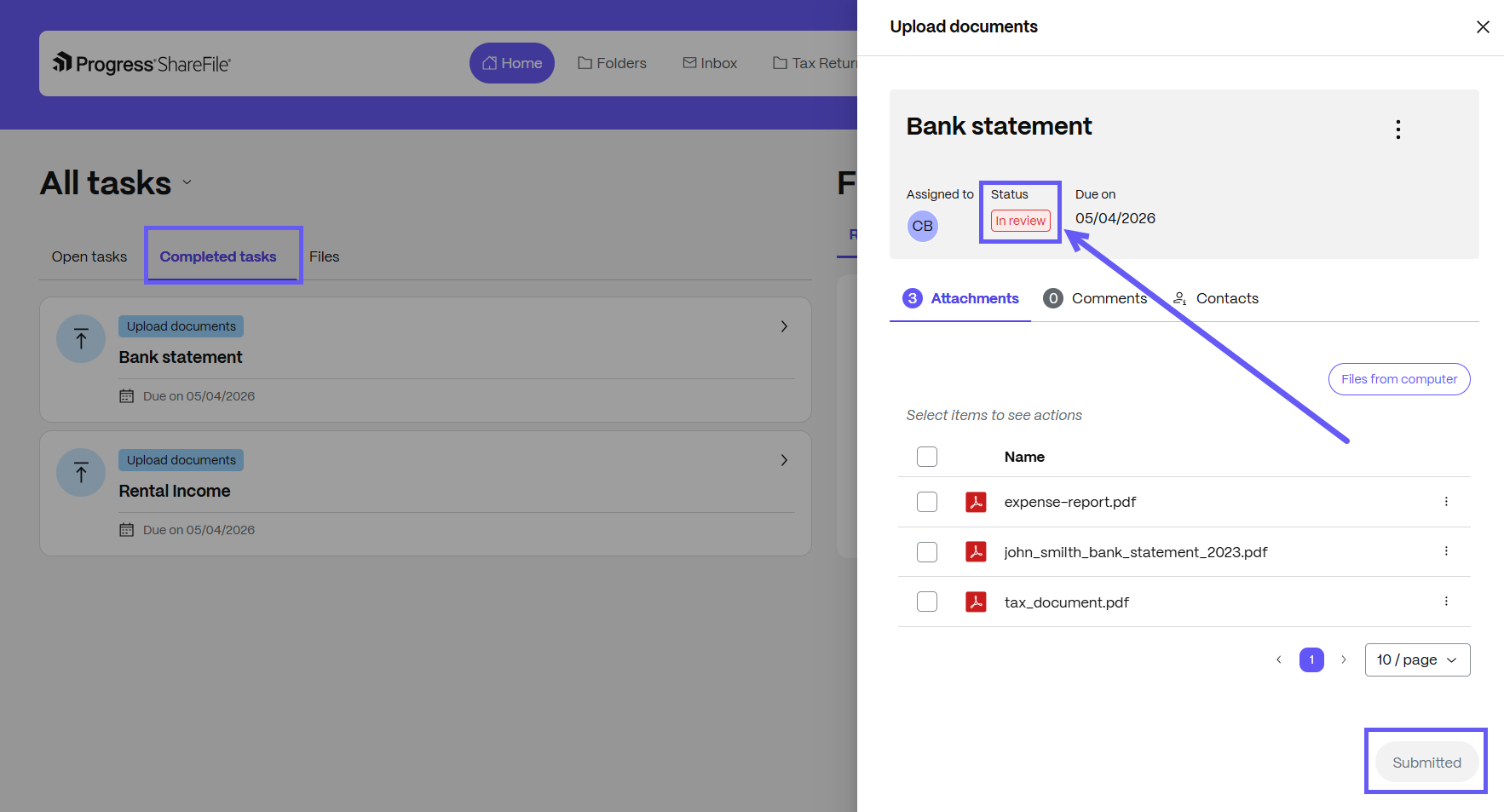
Once you submit the task, click on Completed tasks to view the status of the item as In review.
AI-Assisted Document Renaming (Service Provider)
The following instructions explain how to review and accept AI-suggested file names before you approve and close a document request.
-
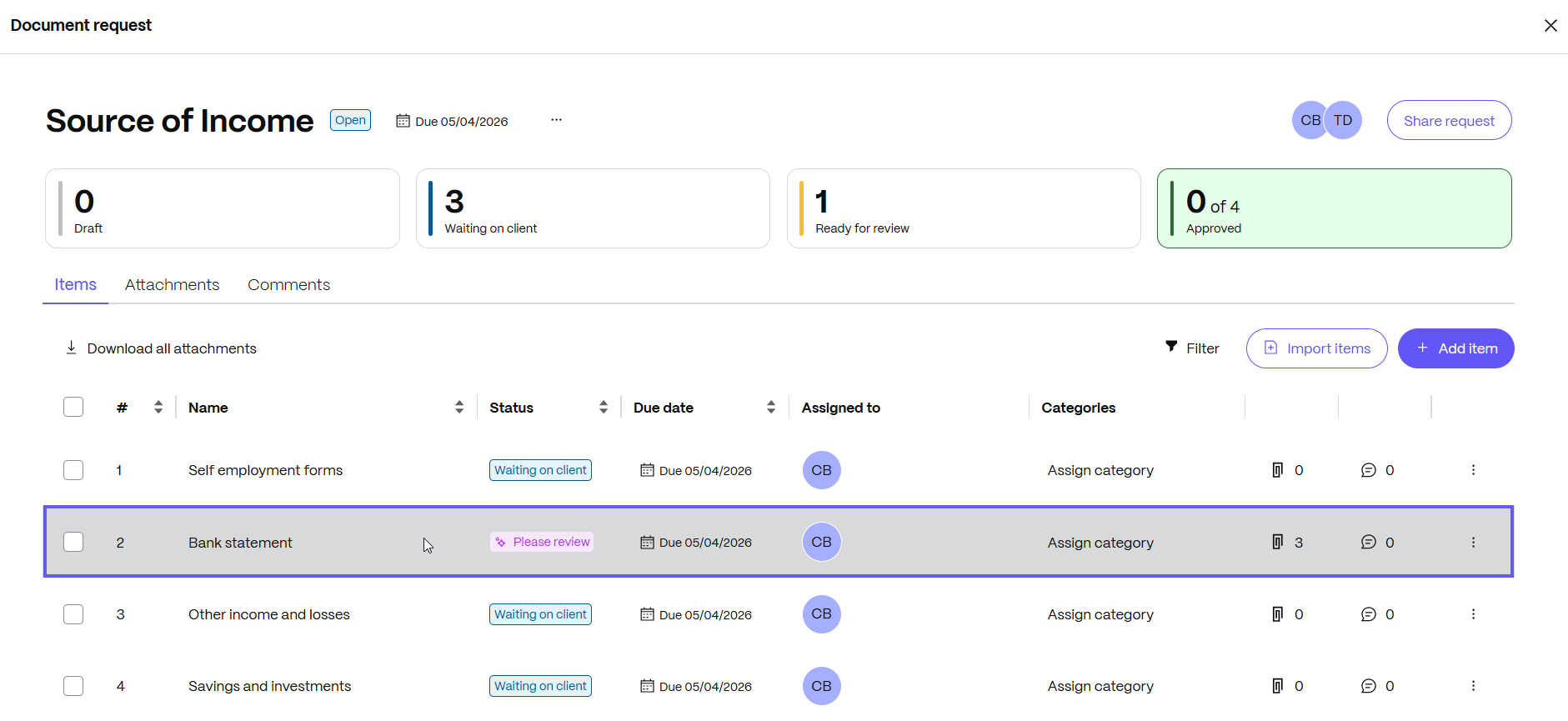
Open the document request item, and review the submitted file.
-
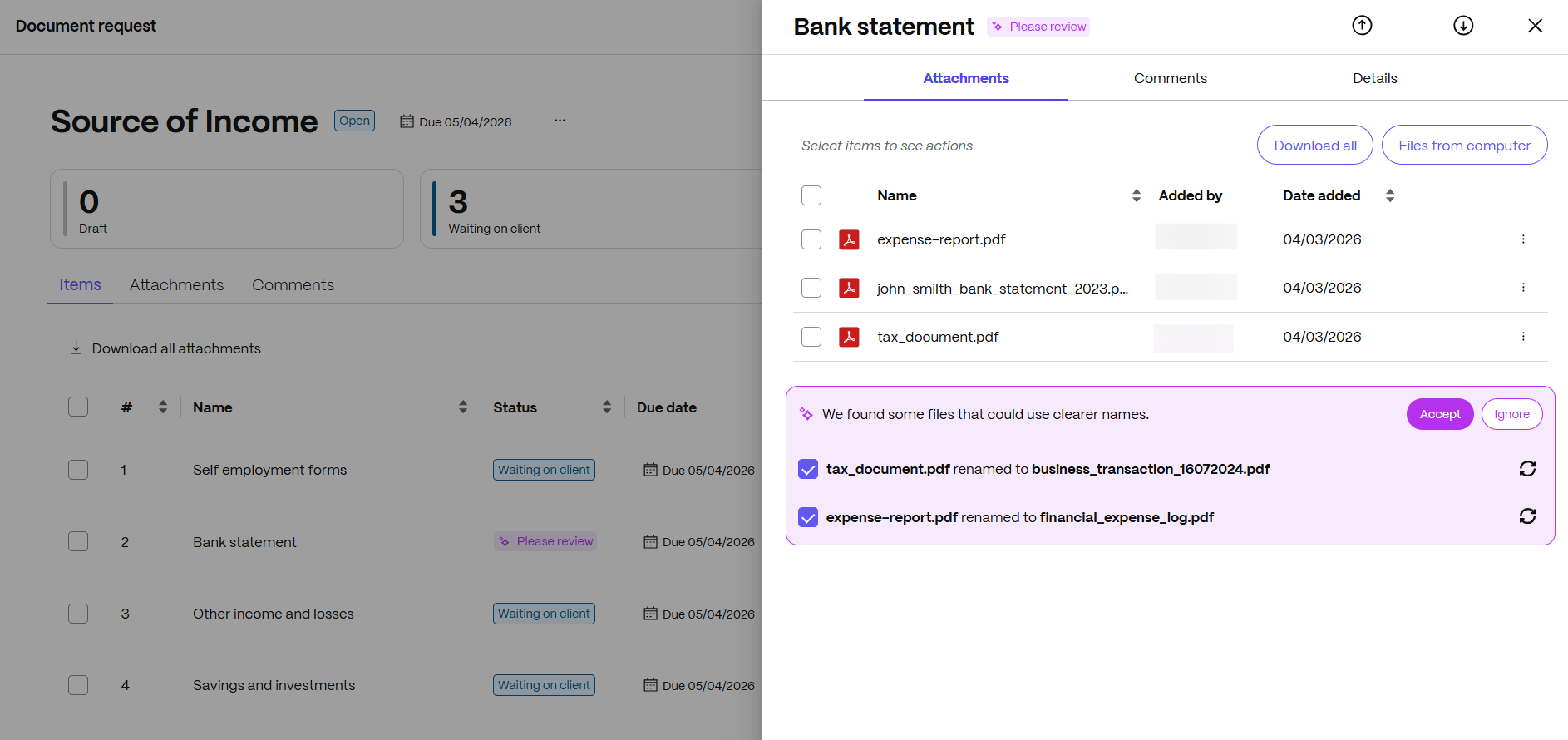
Select the item. The document request drawer opens on the right side of your screen. Click on Attachments and review the AI-generated file name suggestions for the submitted files.
-
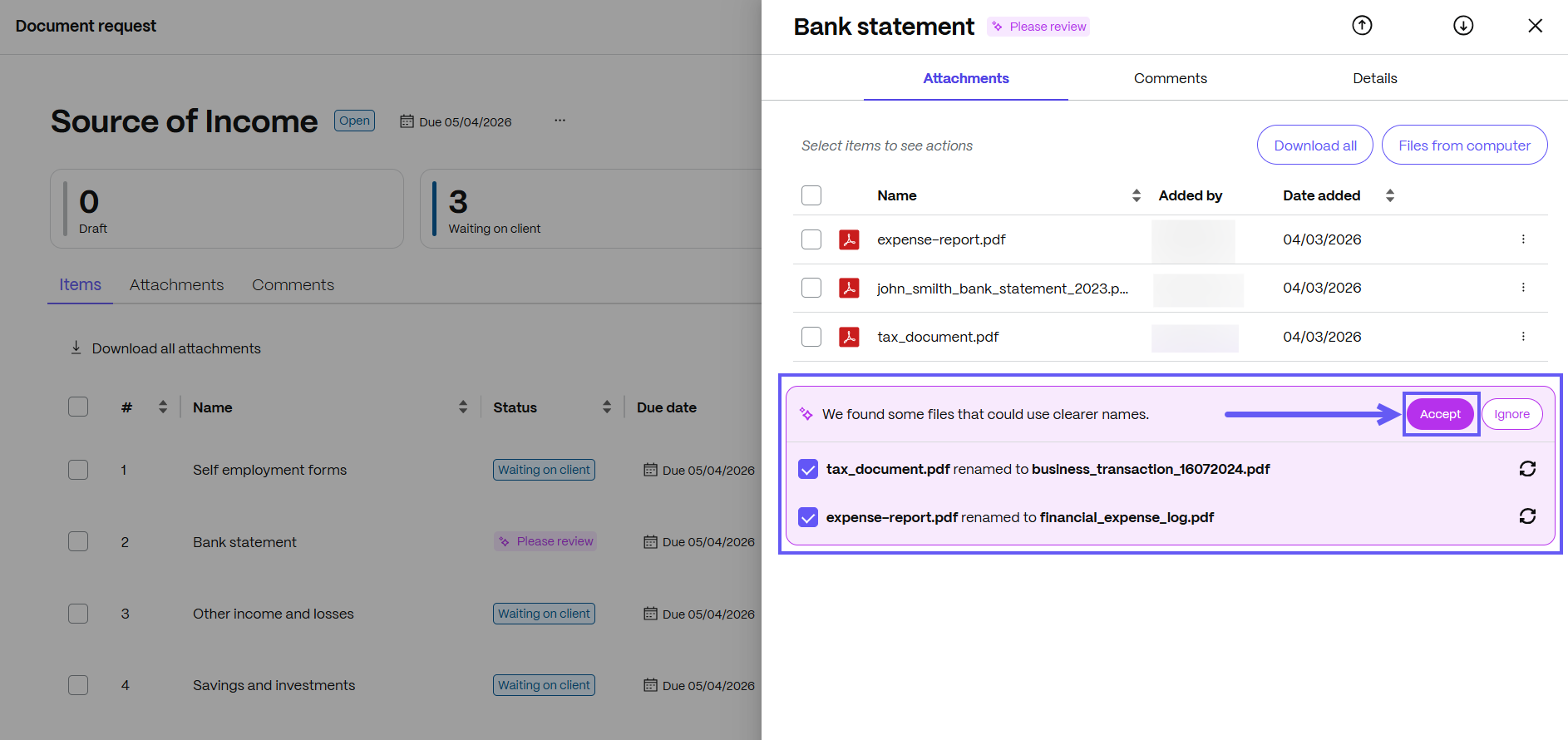
Select Accept to rename the selected files.
NOTE:
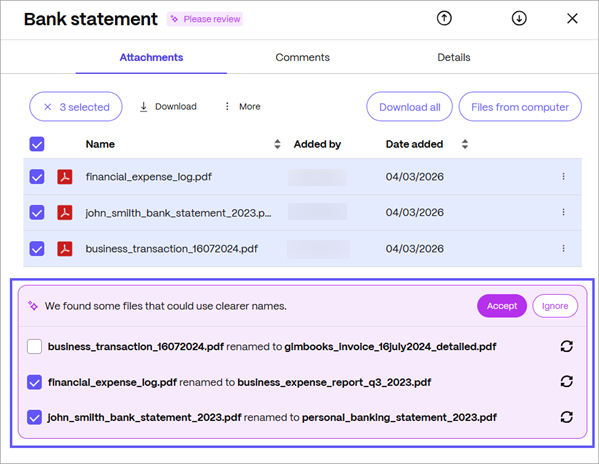
You can request AI-generated file name suggestions for one or more files.
-
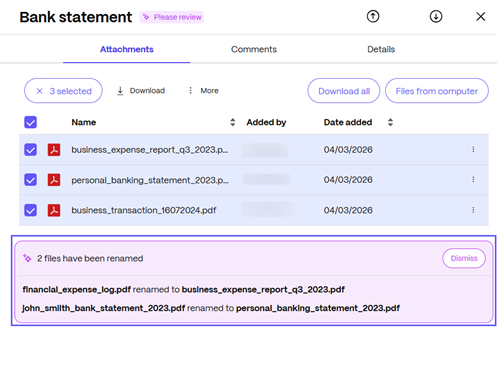
The selected file names have been renamed as shown below.
-
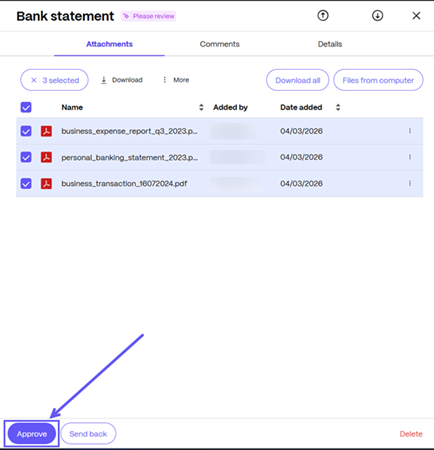
Once all the tasks are completed, select Approve and close the request.
AI-assisted file renaming options
Users can access AI rename in several ways and review AI-generated file name suggestions before approving the request.
Key capabilities include:
- Generate new suggestions
- AI rename from More option
- AI rename from the three-dot menu
- AI rename toggle
Generate new suggestions
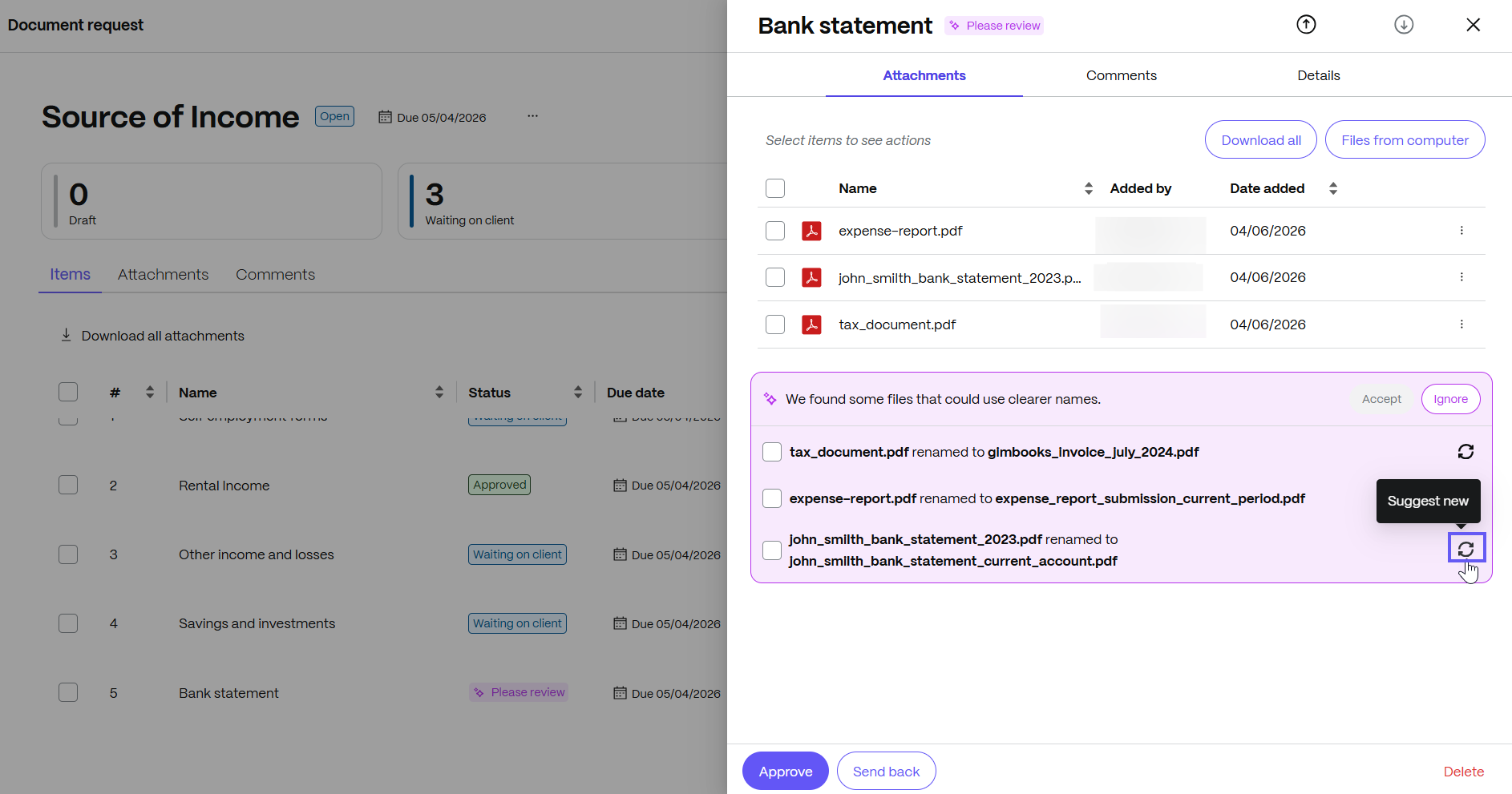
From the file’s suggestion banner, select Suggest new. Review the AI-generated file name suggestions, and then cycle through the suggestions to choose one.
AI rename from More option
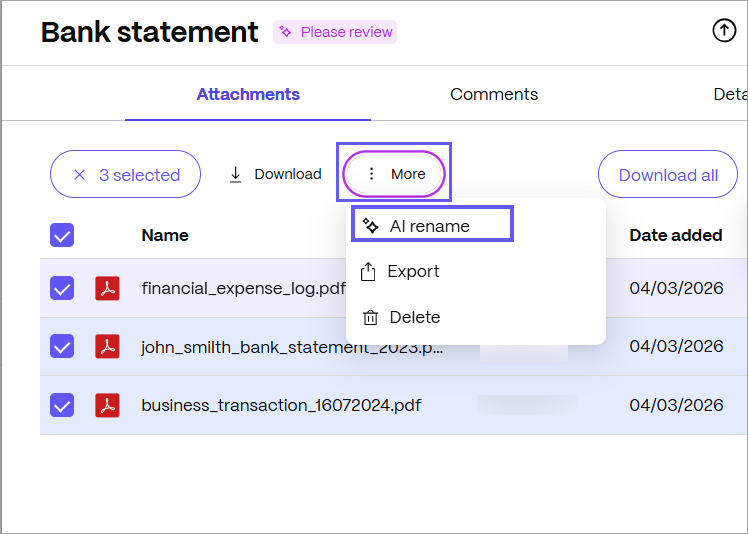
Navigate to the More option from the three-dot menu and select AI rename.
AI rename from the three-dot menu
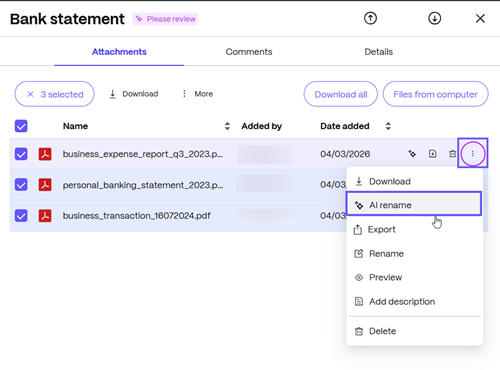
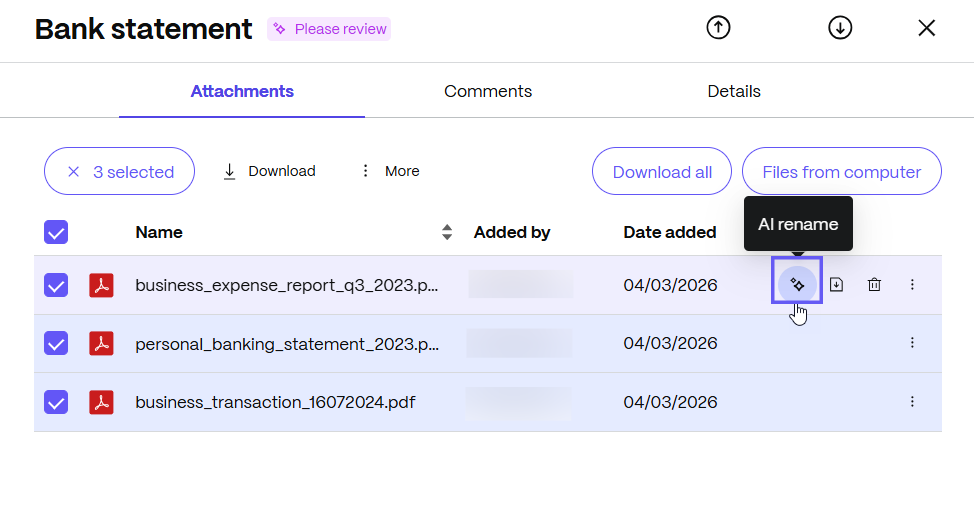
Click the three-dot menu next to the Delete icon and choose AI rename as shown below.
AI rename toggle
Users can navigate to the AI rename toggle, next to the file name, as shown below.
Who can use this feature
-
This feature is available for ShareFile Premium and ShareFile Industry Advantage plans with DRL-enabled environments.
-
AI File Renaming is available in the ShareFile web application and is currently not supported on Mobile.
Enable or Disable the feature
An administrator can enable the AI renaming feature by following the steps below:
-
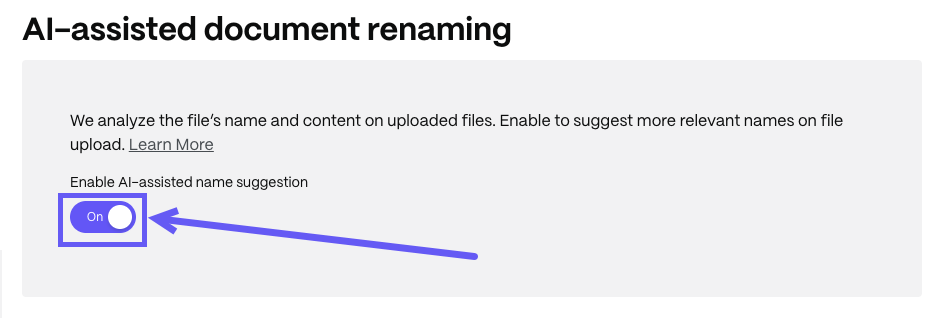
Navigate to Account settings > Advanced Preferences > AI Settings > AI-assisted document renaming.
-
Select the toggle to enable AI-assisted document renaming.
-
Switch AI-renaming to ON or OFF.
-
Click Save.
NOTE:
Disabling this feature turns off AI renaming for both Client and Service Provider workflows.
Key Capabilities
| Capability | What It Does | Who Sees It |
|---|---|---|
| Automatic name suggestion on client upload | Generates improved file names using document content, and metadata | Employee and Client users |
| Manual bulk renaming | Allows renaming of multiple files in a single action | Employee user |
| Upload batch renaming | Applies AI naming suggestions to entire upload batches | Employee user |
| New suggestion request | Allows changing the suggestion and propose another name | Employee user |
| Mixed file type support | Supported file types are pdfs, docx files, .xlsx, .pptx and .txt. | Employee and Client users |
Limitations
- Very large bulk renaming operations may experience temporary processing delays during peak activity periods.
- AI accuracy may vary for low-quality scans or documents with limited readable text.
Share
Share
This Preview product documentation is Citrix Confidential.
You agree to hold this documentation confidential pursuant to the terms of your Citrix Beta/Tech Preview Agreement.
The development, release and timing of any features or functionality described in the Preview documentation remains at our sole discretion and are subject to change without notice or consultation.
The documentation is for informational purposes only and is not a commitment, promise or legal obligation to deliver any material, code or functionality and should not be relied upon in making Citrix product purchase decisions.
If you do not agree, select I DO NOT AGREE to exit.