This content has been machine translated dynamically.
Dieser Inhalt ist eine maschinelle Übersetzung, die dynamisch erstellt wurde. (Haftungsausschluss)
Cet article a été traduit automatiquement de manière dynamique. (Clause de non responsabilité)
Este artículo lo ha traducido una máquina de forma dinámica. (Aviso legal)
此内容已经过机器动态翻译。 放弃
このコンテンツは動的に機械翻訳されています。免責事項
이 콘텐츠는 동적으로 기계 번역되었습니다. 책임 부인
Este texto foi traduzido automaticamente. (Aviso legal)
Questo contenuto è stato tradotto dinamicamente con traduzione automatica.(Esclusione di responsabilità))
This article has been machine translated.
Dieser Artikel wurde maschinell übersetzt. (Haftungsausschluss)
Ce article a été traduit automatiquement. (Clause de non responsabilité)
Este artículo ha sido traducido automáticamente. (Aviso legal)
この記事は機械翻訳されています.免責事項
이 기사는 기계 번역되었습니다.책임 부인
Este artigo foi traduzido automaticamente.(Aviso legal)
这篇文章已经过机器翻译.放弃
Questo articolo è stato tradotto automaticamente.(Esclusione di responsabilità))
Translation failed!
Send a document package
Send a document package allows you to merge multiple documents and send it to the signer as a single package for signature. The document package feature removes the issue of merging documents separately. Users are able to prepare the document on the go.
Signers can access, organize, and sign a single file. Signers can save their progress and return later.
Prerequisites
- Files types available for packaging: .pdf, .txt, and .docx
- The total size of the combined document should not exceed 20 MB
- Document packages can not be used with a template
Instructions
Use the following instructions to create a document package in ShareFile Signatures.
-
Sign into your ShareFile account.
-
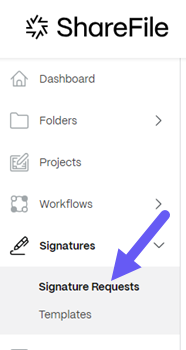
Select Signatures > Signature Requests.
-
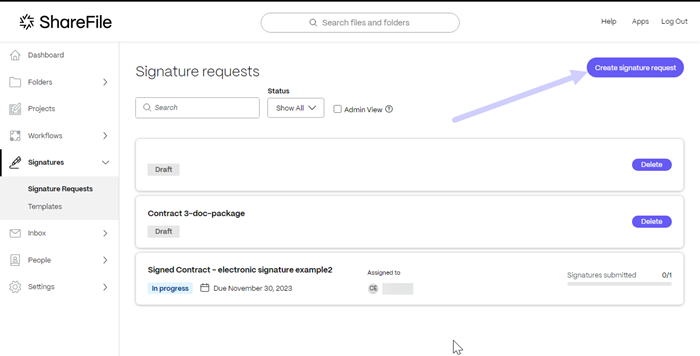
Select Create signature request.
-
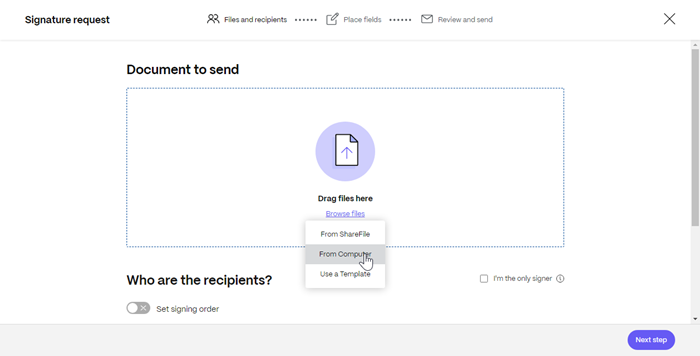
Select a Document to send by dragging a file to the window or select Browse files.
-
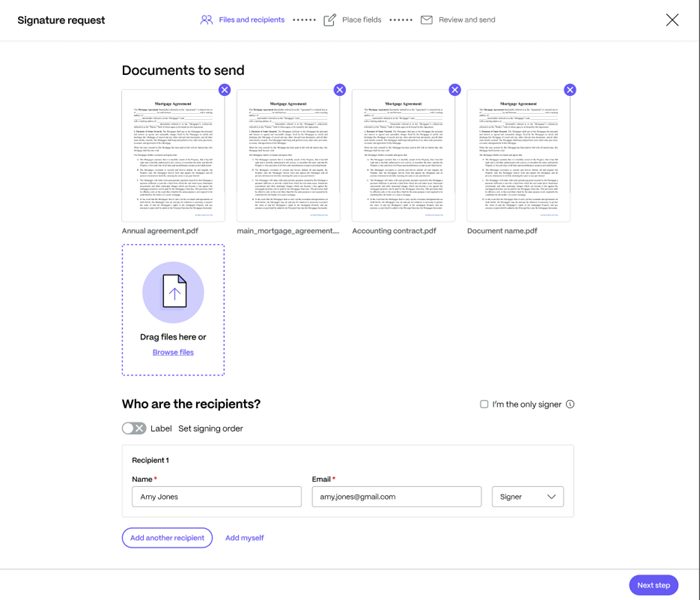
Repeat step 4 for up to a total of 5 documents to send as a package.
-
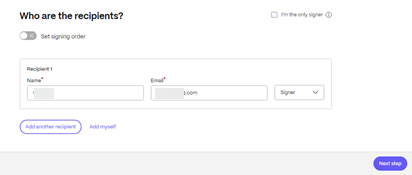
Enter the recipient information including Name and Email.
-
Select if the recipient is to be a signer or viewer of the document.
Tips:
-
Add recipients is an option if you must send the same document for multiple signers listed. For more information, see More
-
Set signing order toggle allows you to stagger the requests based on the order set during the request for addition signers. For more information, see Set signing order.
-
-
Select Next Step.
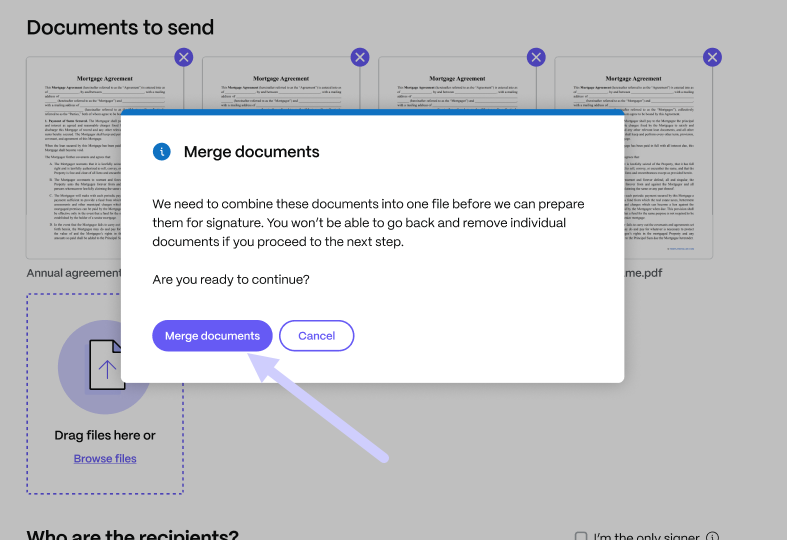
The Merge documents pop-up displays stating the documents will be combined into one file package for signature.
-
Select Merge documents.
The Merge documents status displays.
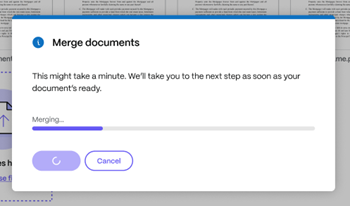
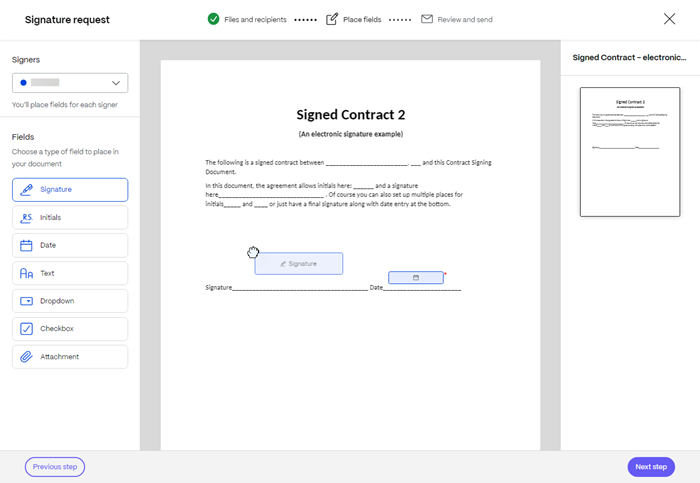
Once the merge process completes, you can add fields.
-
Select the fields that you want to add to the document then drag them into place.
-
Select Next Step.
-
Verify the Document name and edit if necessary.

-
Select Edit to choose where you want the signed document to be stored or leave the default setting.

-
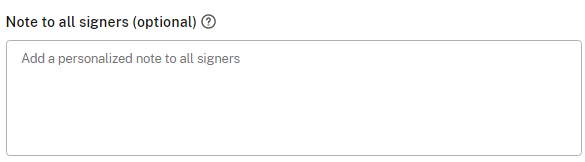
Add an optional note for the signer.
-
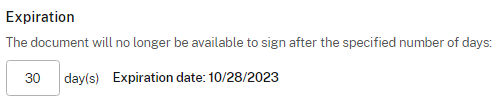
Set the expiration for the request.
-
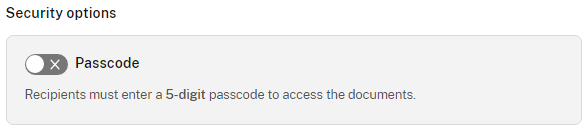
Select the Passcode toggle to generate a code the signer needs to open the signature request.
-
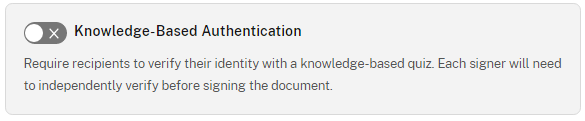
Select the Knowledge-Based Authentication toggle to require recipients to verify their identity with a knowledge-based quiz. Each signer needs to independently verify before signing the document.
Note:
Signers will be locked out of the document after 3 failed attempts.
-
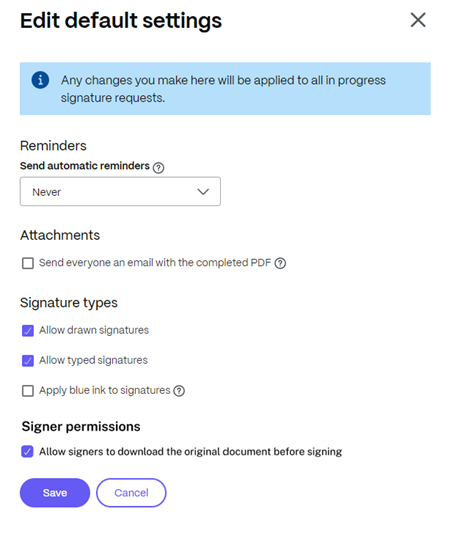
Under Default settings select the optional Edit Default settings or skip to the next step. For more information on the setting options, see Default settings.
-
Select Save for changes to the default settings.
-
Select Send signature request.

In this article
This Preview product documentation is Citrix Confidential.
You agree to hold this documentation confidential pursuant to the terms of your Citrix Beta/Tech Preview Agreement.
The development, release and timing of any features or functionality described in the Preview documentation remains at our sole discretion and are subject to change without notice or consultation.
The documentation is for informational purposes only and is not a commitment, promise or legal obligation to deliver any material, code or functionality and should not be relied upon in making Citrix product purchase decisions.
If you do not agree, select I DO NOT AGREE to exit.