Create Client in manage users
ShareFile users can add clients using the following steps from their ShareFile account dashboard.
-
Sign in to ShareFile.
-
Go to People.
-
Select Manage Users Home.
-
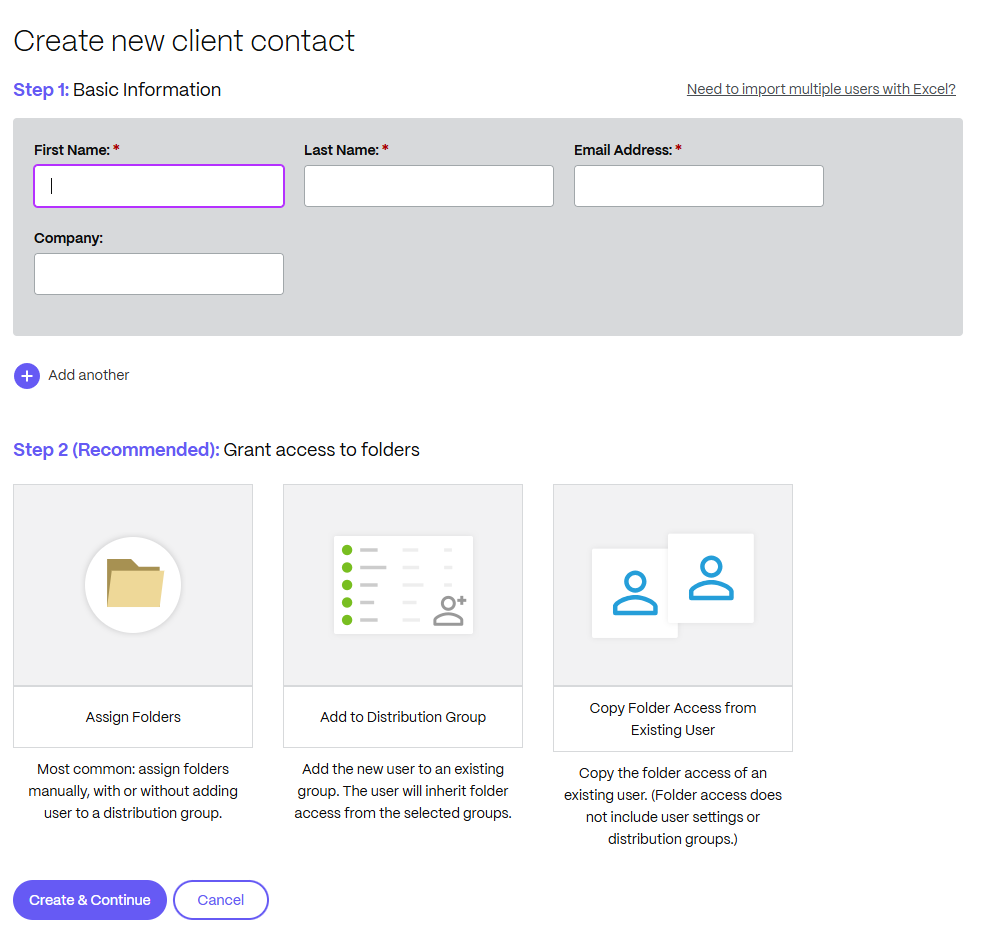
Click Create client contact. The Create new client contact screen displays.
-
In Step 1: Basic Information enter the information for the client including First Name, Last Name, Email Address, and Company.
-
In Step 2: Give User Access to Folders select Assign Folders. See Give User Access to Folders for more information. Other options include:
-
Copy Folder Access from Existing User - which saves time setting folder access permissions when creating a client. Using the Copy Folder Access option copies only folder permissions, not account permissions.
-
Select Create & Continue. The Notify Users displays and provides the ability to send a customized Welcome message to let the client know they are added to your account.
Important:
New clients must verify their email address to have access.
-
Select Notify.
The "Invitation(s) sent successfully" message displays briefly and the Browse client contacts dashboard screen displays allowing you to review the added client.