Create a client by adding them to a folder
You can create a new client by adding a new user to an existing folder in your ShareFile account. Use the following steps to complete the process by adding a new user to a folder.
-
In your ShareFile account, open the folder you want to add a new user to.
-
Select People and click Add People to Folder.
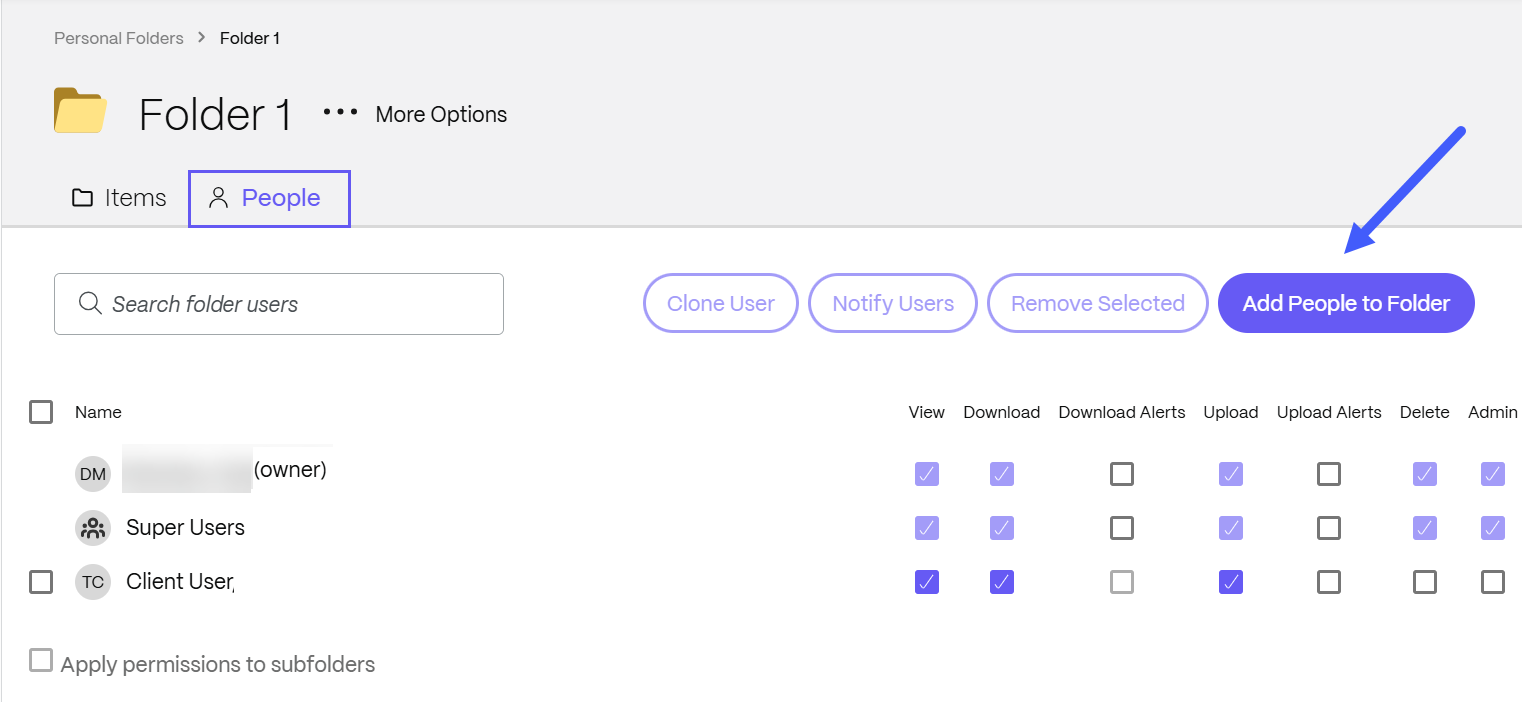
The Add People to Folder pop-up displays.
-
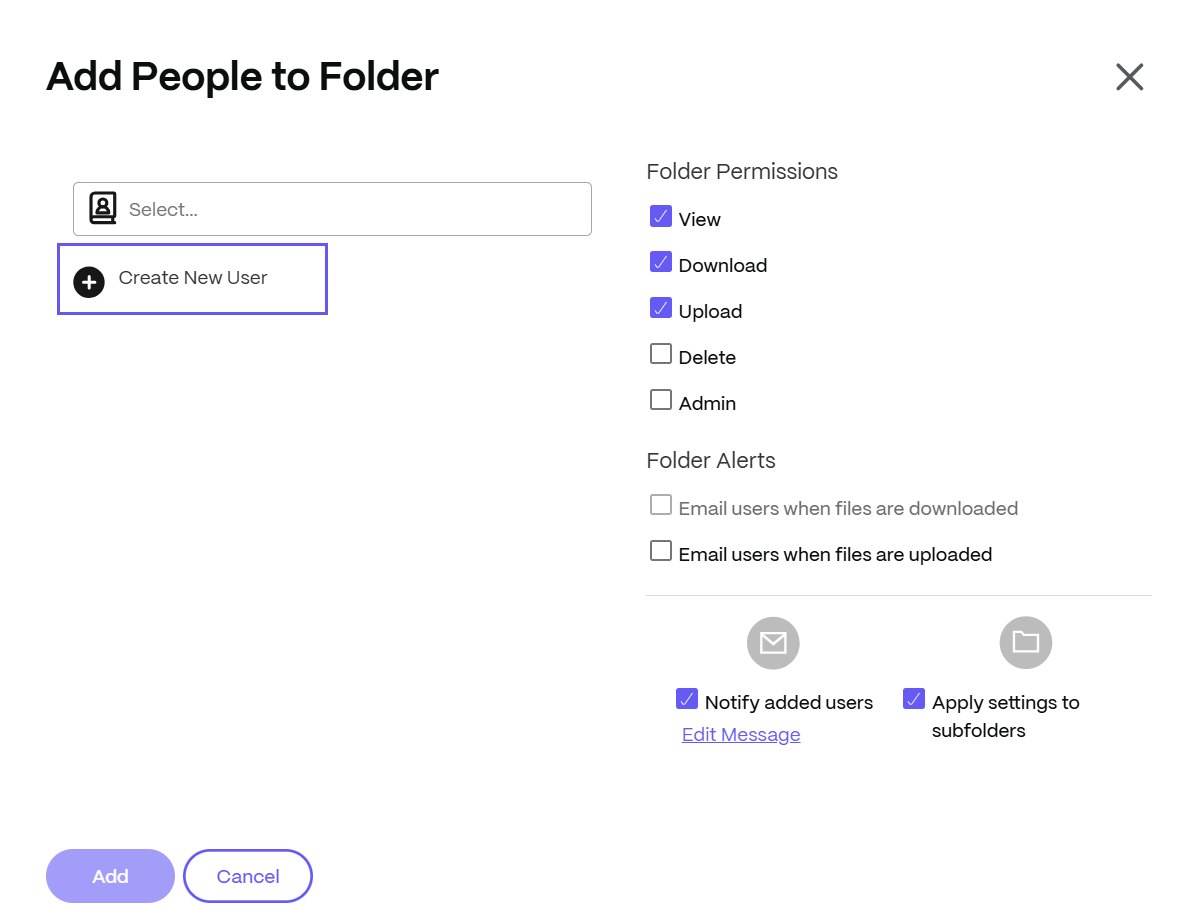
Select Create New User.
-
Enter the new user information including the required fields for Email Address, First Name, and Last Name. Company is optional.
-
Set the Folder Permissions.
-
Select Notify added users to ensure the new client is notified and can receive an activation link.
-
Use the option to Apply settings to subfolders if necessary.
-
Select Add.
The "People added successfully" message displays briefly.
-
Navigate to People > Browse client contacts and select the person you added to the folder.
-
Under the Basic Information tab you can enter additional information about the client.
-
Select Save Changes.
-
Select the client again then select Email Login Information from the Actions > User-level right-hand side menu to open the Resend Welcome Emails screen to let the user know they've been added to the account.
-
Select Notify. The "Invitation(s) sent successfully" message displays briefly and the Browse client contacts dashboard screen displays allowing you to review the added client.
The recipient receives a message asking them to activate their account.